Archive Page 5

GIMP – Getting Started with Papercraft Modding/Bashing – One

First up normally when I start talking to people about GIMP they get all nervous looking and edge towards a door, I think they assume I mean these, so to clarify my post is about GIMP (GNU Image Manipulation Program). I wrote this blog post for a few reasons. First I wanted some basic info to go with the Lost Reich posts I’ll be putting up later and as I seem to have posted/sent information like this out a few times to different people I thought others might find it useful.

First up the online Gimp help files are actually helpful and very well written so I would encourage people to have a flick through those. I will admit that for a new user they could seem a little over whelming with the amount of info presented. The full help files can be found here, I suspect most people will want to jump straight to Chapter 3 in that document as that’s were the real meaty help and how to use starts. My post below  is a bit of a shortcut primer to just get you up and running quickly and start hacking some basic mods into an existing paper models  but is no substitute for the full help files and hard won experience.

If your switching across to GIMP from your totally legal and fully purchased copy of photoshop. I would encourage you to stick with GIMP it took me about 3 months to become fully comfortable with GIMP when I switched over from my old copy of photoshop 5/6.  Now I couldn’t live without some features in GIMP such as “Paste as New Image” (suspect photoshop has that now) and the ability to push docks onto my 2nd monitor as separate Windows. I will admit though that sometimes it takes a little longer in GIMP or it takes me time to locate a plugin to do the same job but unless your a high paid commercial graphic designer, GIMP should meet your needs :). Just give it a chance and give your mind a chance to learn (re-learn) where everything is.

* I have assumed with the below that the user has some understanding of terms like “docks”, can install the software and has some basic level of software knowledge. If not drop me a comment and I’ll try and clarify or help further.

Getting GIMP and First Startup

First up download GIMP and install, the version available when I wrote this is 2.8.2, so your success with the below instructions might vary if we are now up to version 4 and/or its the year 2022.  Personally I prefer to use the portable version to the full install version as I tend to run GIMP off my external HDD I carry with me everywhere.

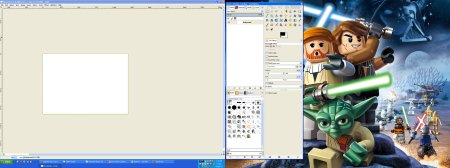
Next up launch Gimp either via the menu item/desktop icon or via the GIMPportable.exe if using the portable version. Now hopefully you’ll end up with something that looks like this on the first launch:
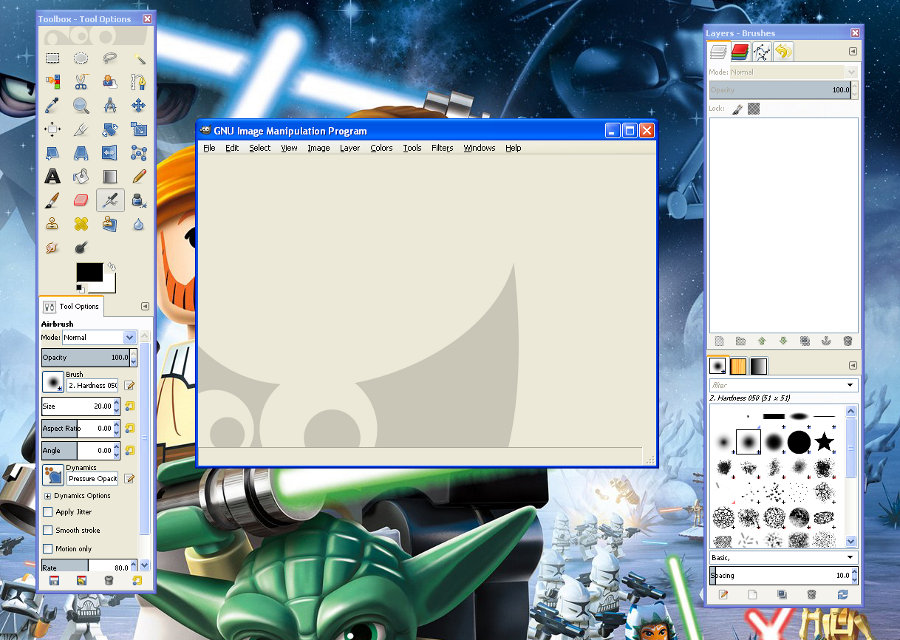
No I’m not a Starwars and Lego Fan..not at all

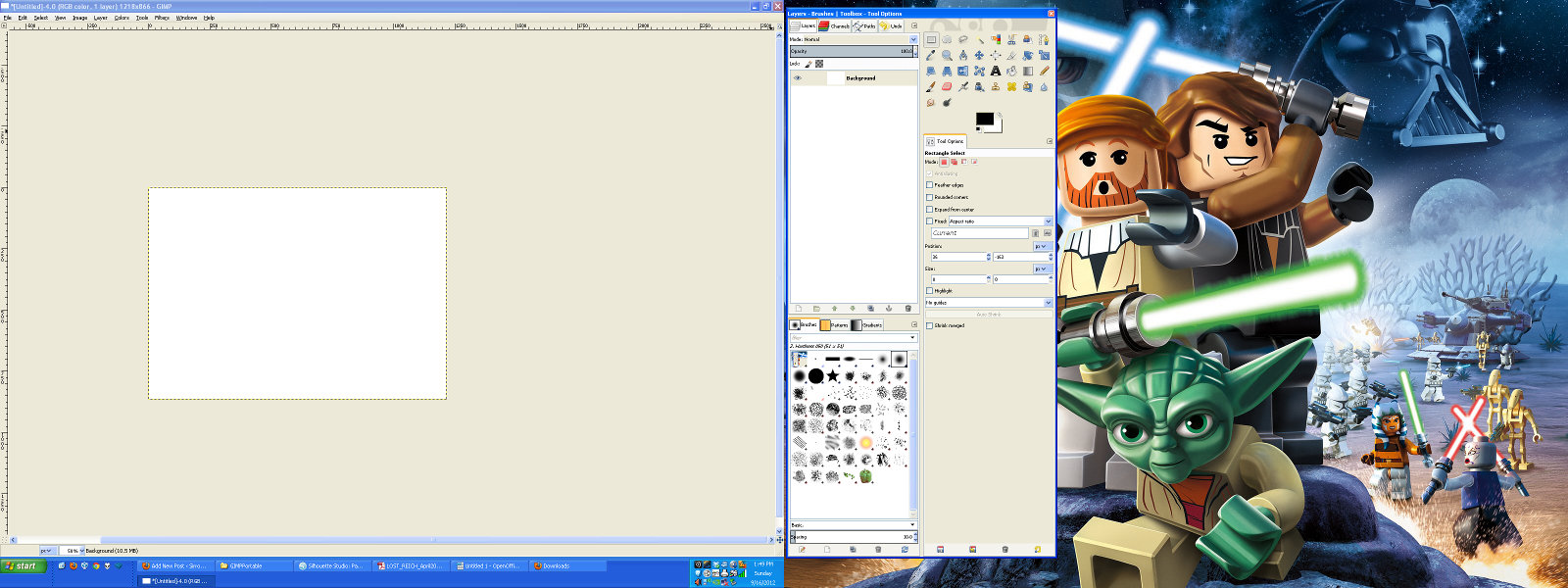
The first issue most people have is that we have 3 separate windows, if your running dual or more monitors I’d encourage you to leave GIMP in the above configuration. This will let you push the main image window onto one whole screen and manage the docks on your second screen so maximizing space when image editing (be nice if GIMP just treated both screens as 1 big screen..maybe next version).

However if you prefer a single window or have only one monitor, simply place GIMP into Single Window mode by going to the menu item “Windows” and select the bottom Option “Single-Window Mode” (depending on how your OS operates you may need to close and restart GIMP to have single window mode appear). Below are two more Screenshots, one in single window mode and the other how I have Gimp setup on two monitors (I normally have more docks opened out and untabbed):
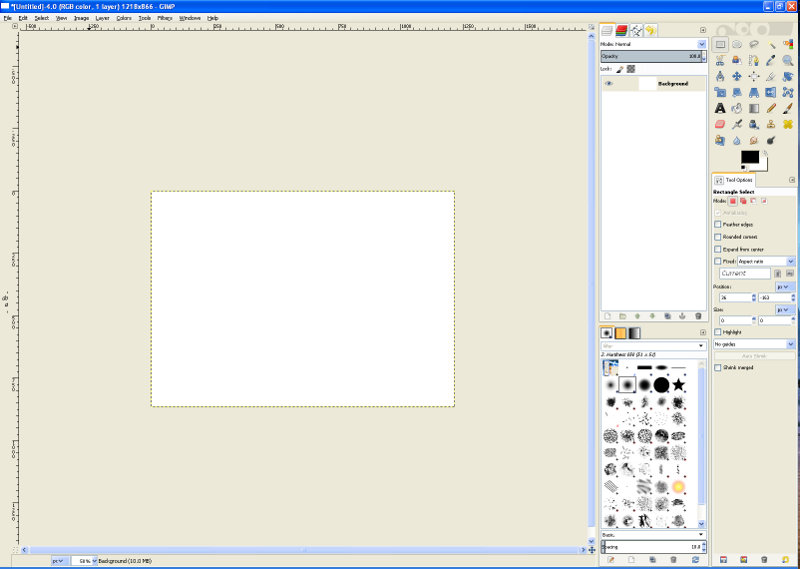
Personally with dual monitors I find the above restrictive, but everyone has there own preference so use what your most comfortable with.
I wish it looked that clean IRL with no monitor bezels 🙂
On the odd chance someone is missing some of the default docks to get those back simply go to the “Windows” menu item and first check that “Hide Docks” isn’t ticked on if it is untick it or simply hit the tab key. If you still have no luck go to “Windows” menu item again and select the recently closed docks option if there any options under that select them and it should return your docks. Still no good, Okay one more easy solution to try, go to menu item “edit” and select “preferences” then select “Window Management” (2nd last item) on the small screen on the right then select the “reset saved window positions to default values” select ok on the question that pops up and then hit ok and close GIMP and relaunch. Hopefully the default dialogs have reappeared.

Still no luck? You have my sympathies and I have no idea whats happened to your install, maybe best to try a re-install or try the portable version I mention above, but if you want you can rebuild your docks by hand but it is painful. First up hold ctrl and hit b this will return your toolbox you’ll need to re-size it a little as it will probably be long and thin. Next Select the “Windows” menu item again then the  Dockable Dialogs and select the ones you want one by one and drag the docks back together. At a minimum you want Layers, Brushes and Tool Options. However many others are useful such as Channels, Paths and Undo history but you’ll figure out what you use/need over time.

Basic Paper Model Mods

Okay number one rule with anything in GIMP, most stuff can be subject to an undo, as with most programs undo is under the edit menu item or triggered through a ctrl-z, so don’t be afraid to use it :).

Getting the PDF into GIMP

This is actually much easier than you would think, the worst thing is that Gimp can’t handle layered PDF’s so it only imports the default view you get when you first open the PDF. I’ll cover a work around for this in a later post:

First Launch GIMP

Then Go to “File” then “Open” and browse to the PDF you wish to open and select it (I opened One Monks Old Devils-Imps.pdf ), you’ll be presented with the below:
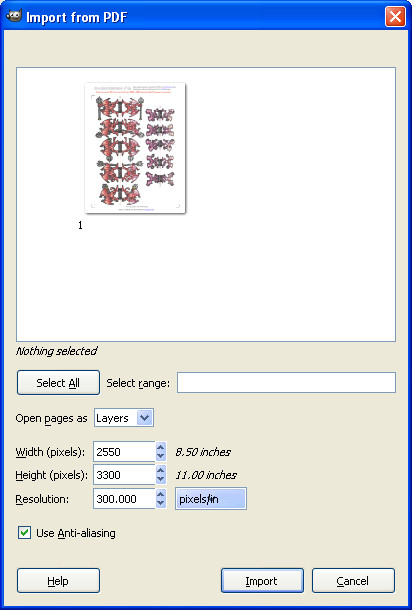
The most important point on this screen is to make sure the resolution is set to 300 (pixels/in – default setting) and then click Import

In the above this was a simple 1 page PDF if I had imported a multi-page (not layered)PDF I would have seen multiple pages (see below) on the selection screen and each page I selected would be given it’s own layer in GIMP – Think of layers like different bits of papers with a different picture/drawing on it.
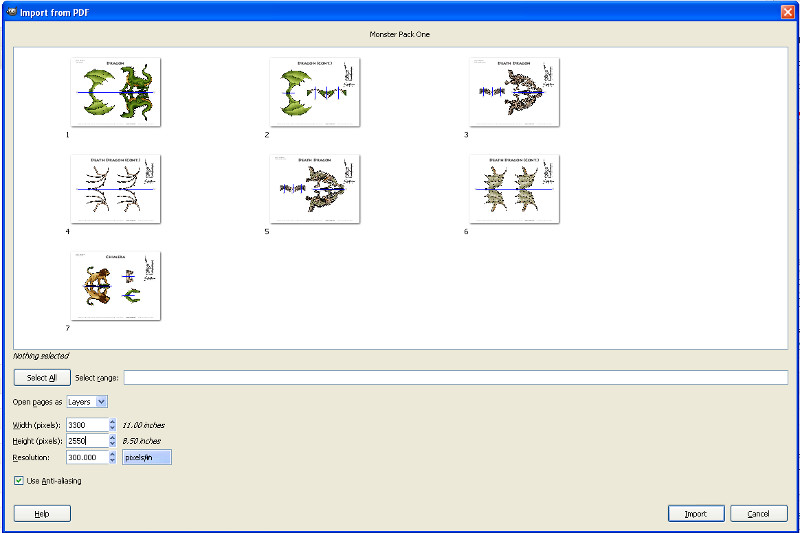
We now have our Imps inside GIMP seemingly ready to go, however if you simply print the page now from GIMP you’ll notice it comes out a little smaller than out of the PDF. I don’t fully understand why but there appears to be some internal margin in GIMP which forces the document to be shrunk on print out. To get around this we simply shrink the paper (canvas) size a little.
Go to “Image” then select “Canvas Size” (Do not use Scale Image), your canvas will probably be 2550×3300 px, Click on the “px” value (see below) and change it to %, change both values to 92% (optional turn on the little chain-link icon and change just the top value and both will match or very close). Press the “Center” button and then press “Resize” (you may have to play around with the X and Y values to get the robo marks to stay in view)
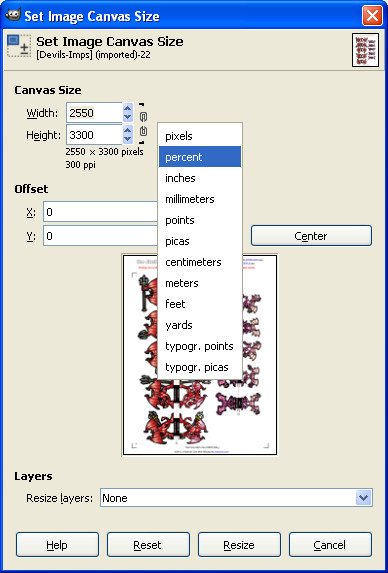
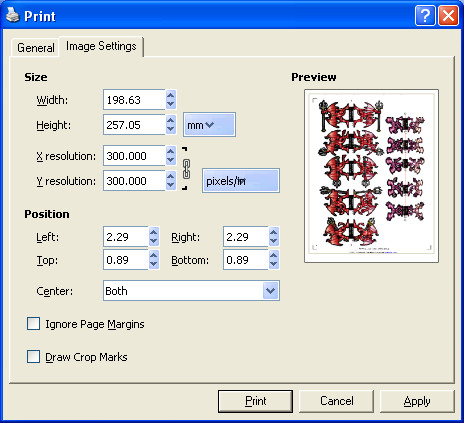
Okay why did we just do that last step? If you now go to “File” and “Print”, select your normal printer, now see right at the top you have a tab next to “General” called “Image setting” click that (see below). See the Resolution is  set to 300, If you don’t shrink your canvas a little Gimps internal margins kick in and the resolution on this screen will be above 300, normally around 320-325  and hence your print outs are small. Now on the below screen you can select the “ignore margins” button and manually set your resolution back to 300 but I tend to forget and end up wasting ink and paper… feel free to check out the below screen before you shrink the canvas.
One Way of re-colouring

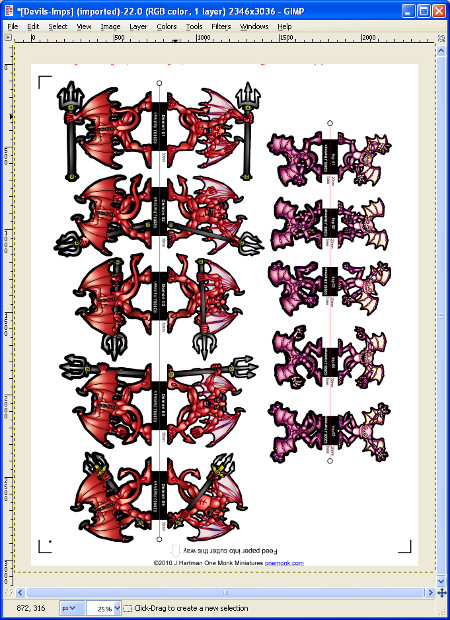
As with most software there are 3-4 different ways of doing something. GIMP is no different and the below is one way you can re-colour in GIMP, the below will however only let you re-colour it wont for example let you apply a different camo texture, but I’ll cover that in a later post. This way is very quick but not without its limitations it will change all instances of that colour/hue to a different colour/hue. So it works best on large single colour critters, Demons, Dragons, Trolls etc.

You have your Image all ready to go:
Next up go to “Colors” and select “Hue and Saturation”, this will launch this screen
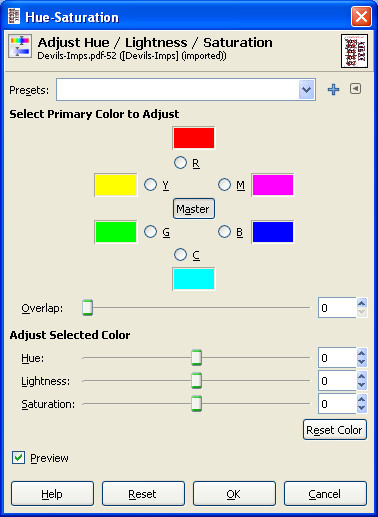
I want some Blue Devils, so I select “R” for red as mostly their skin is Red and now I simply adjust the Hue slider until I get a nice Blue shade. If I want a lighter Blue I simply adjust the Lightness and Saturation Sliders (make sure the little Preview box above “help” is ticked on) until I’m happy with the colour. Below are some example re-colours and the settings used to achieve them. In both cases I adjusted both the Red and Magenta channels but have included screen grabs of both.
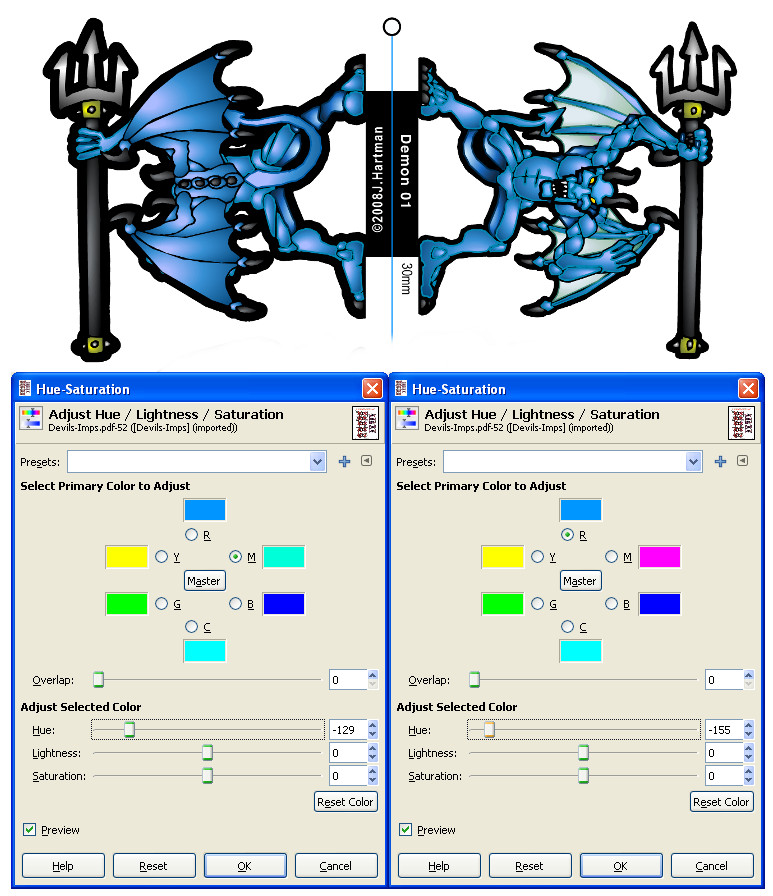
Blue Frost Demons
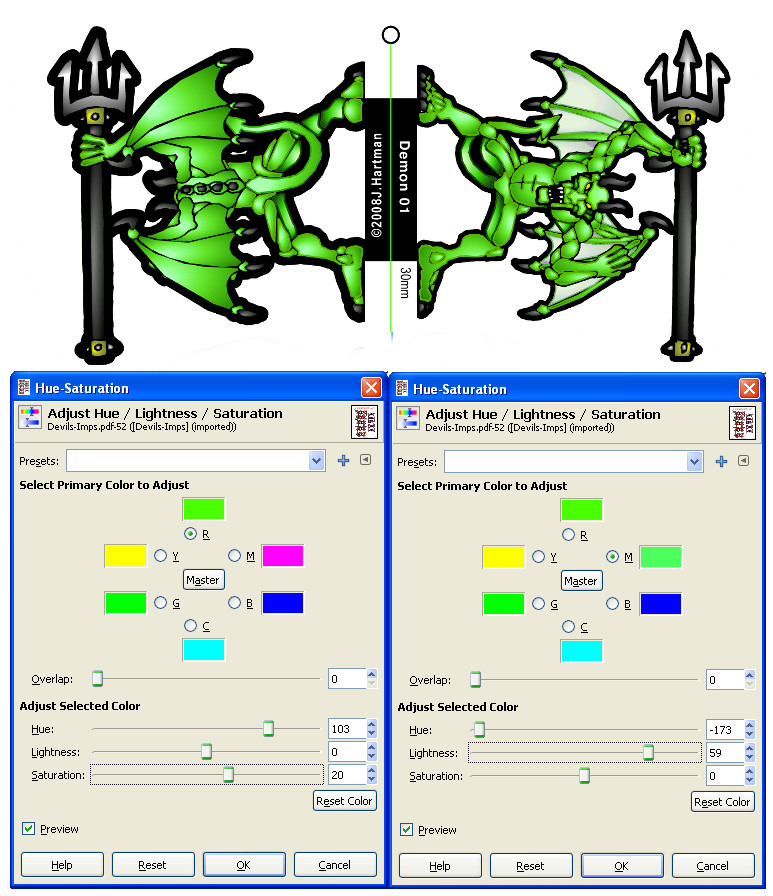
How about some Bright Green Forest Demons?

Once your happy with the colour, select ok and the minis will be re-coloured then save your version as an xcf  file and print your document, cut out (or run through your Cameo/Robo) and enjoy your newly coloured minis.

I’ll leave it  there for now as this post is very long, hopefully there is enough above to get you started. I’ll cover a bit more in other posts later this and next week, I have 3 posts part drafted. If you want me to cover something specific feel free to leave a comment asking/requesting it and I’ll try and add it to my next post.

As always have fun
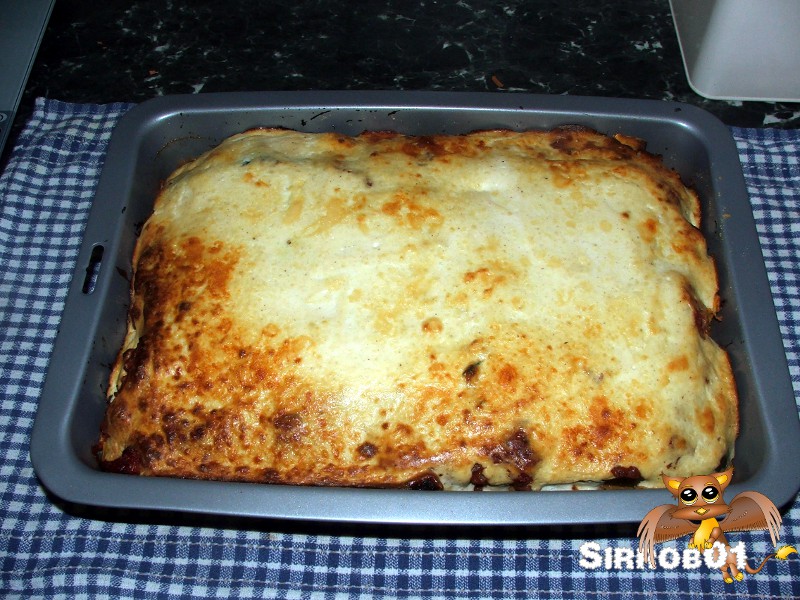
Healthy Vegetable Moussaka

I’ve been making a few recipes out of the veganomicon, although not vegan myself I’ve been been modifying the recipes  and trying to make them a little lower in energy per serving. Below is my modification of the Moussaka recipe on page 165 of the veganomicon which I might say is very tasty in it’s own right but a little to high in energy. Mainly due to the inclusion of pine nuts and about 750g (1.5 pounds) of potato.

First up this is not a quick recipe to make, so far every time I’ve made it, it has taken me a good 2 hours of time. Although not 2 hours solid in the kitchen about an hour on prep and 45 mins to bake. It does however make about 10 servings, so its good for meals for a week or if you’ve got people coming for dinner. If I’m serving it for others we’ll add a simple salad to the side, if it’s just myself and my wife we’ll have just the Moussaka.

Ingredients

Vegetables For Layering

1/8 cup Olive Oil or Spray Olive Oil

1kg (2.2lb) Eggplant (about 2 large)

1kg (2.2lb) Zucchini (6-8 medium size)

1kg (2.2lb) Carrots (Grated/Shredded)

1kg (2.2lb) Butternut pumpkin

500g (1.1lb) Sweet potato

Tomato Sauce Base

3  Cans Crushed Tomato (1.2kg – 2.6lbs)

3 Med Onions (500g – 1.1lbs)

4 Cloves Garlic (minced/grated)

1/3 Cup Veg Stock

4 Teaspoon Oregano

1/2 Teaspoon Cinnamon

1 Teaspoon Dry veg stock

1 Teaspoon Guar Gum (or another thickener)

1/4 Cup Water

White Sauce

4 Tablespoons Lemon Juice

600g (1.3lbs) Silken Tofu

1 1/2 Teaspoon Arrowroot Powder

1 Clove Garlic  (minced/grated)

1 Teaspoon Ginger

2 Pinch Fresh Nutmeg

2 Pinch Black Pepper

200g Cottage Cheese

20g Grated Parmesan Cheese

Topping

20g Grated Parmesan Cheese

Getting the Vegetables Ready for Layering

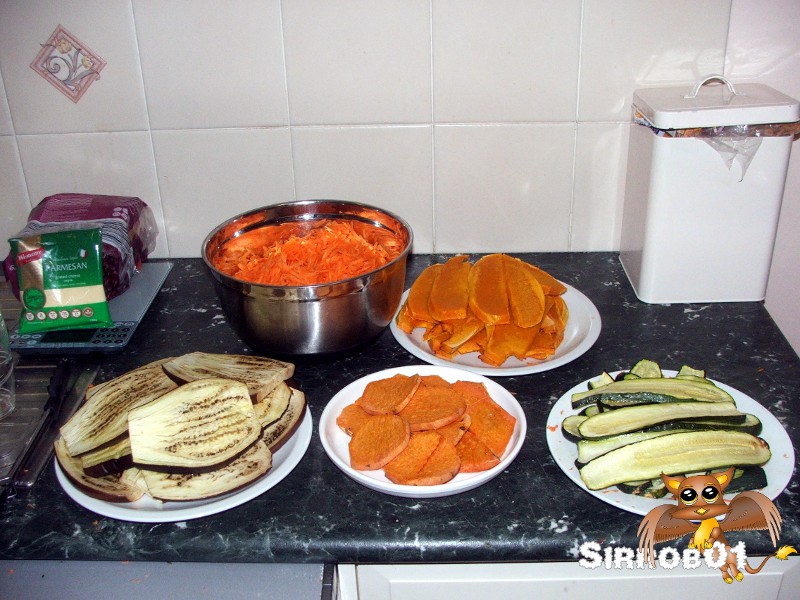
Preheat the oven to 200 C (400F) then cut the tops and bottoms of the eggplant and zucchini and slice them into 1/2 to 3/4 cm (1/4inch) thick slices length ways. Next up peel the pumpkin and sweet potato and cut them into slices about the same thickness as the zucchini and eggplant. Place all the cut vegies on trays on greaseproof/baking paper (saves using oil) and either spray the tops with olive spray oil or brush very lightly with olive oil (1/8 cup). Place these trays in the oven and cook the zucchini and eggplant for 15-20mins and the potato and pumpkin for 20-25mins, try not to over roast them.

Roasted and Ready to go

Make the Tomato Sauce

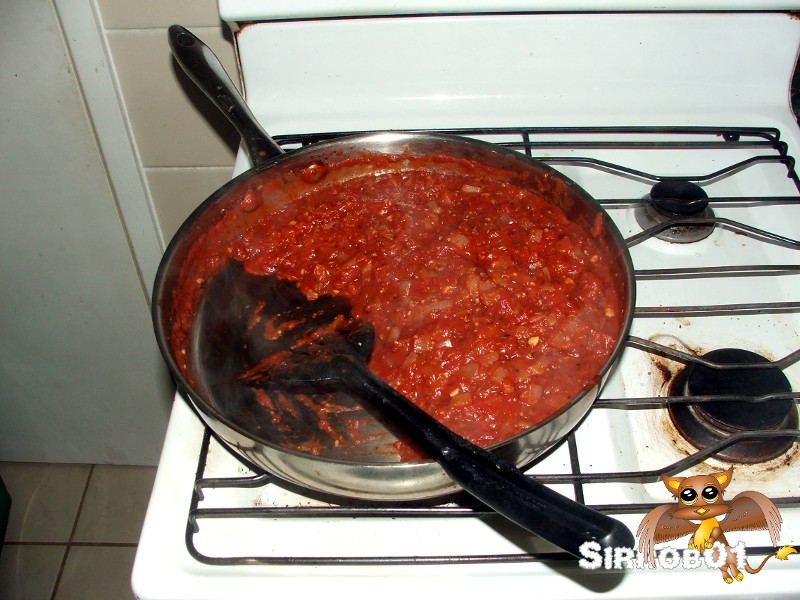
While the vegetables are roasting you can make the tomato(red) sauce. In a frypan place the 1/4 cup of water, 4 cloves of crushed garlic and onion, gently fry this until the onion is cooked about when all the water is evaporated. Next add the 3 cans of crushed tomato, Oregano, Cinnamon, 1/3 cup veg stock and Guar gum.  Gently simmer all this for 15-20mins until it begins to thicken then add the last teaspoon of dry veg stock and cook for about 5 more mins.  When done simply turn off the heat, don’t forget to check on your vegetables while doing this step 🙂 .

Tomato Sauce Awaiting the layering of the vegetables

Make the White Sauce

I should say slowly add all the ingredients together and mix, but honestly just stick them all in a blender and blend until you have a smooth white sauce.

Pulling it together

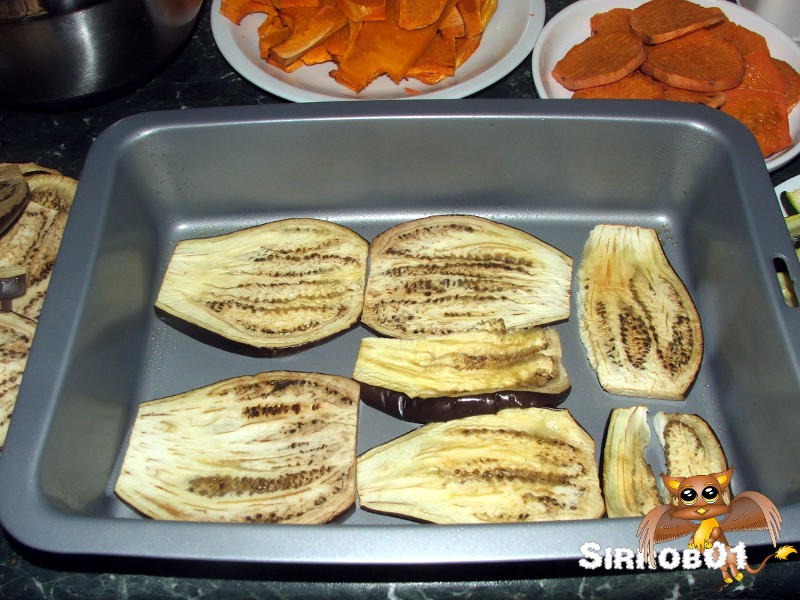
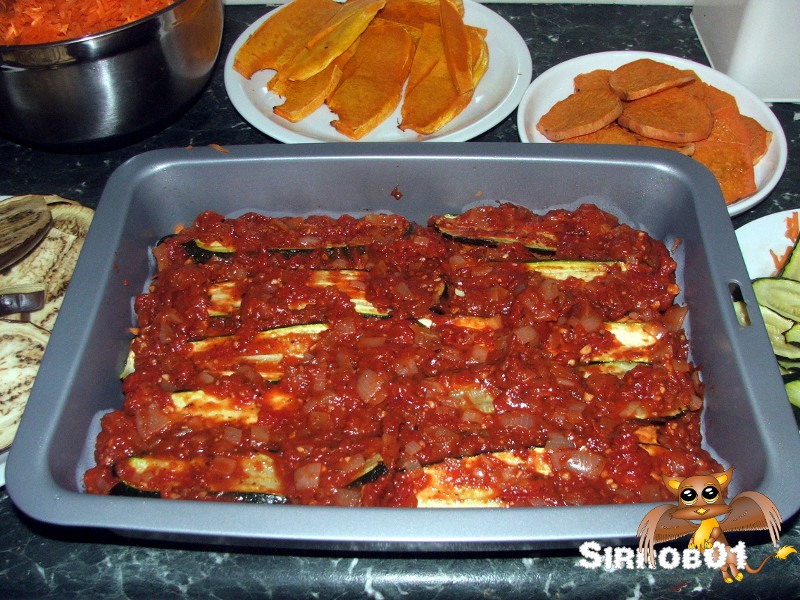
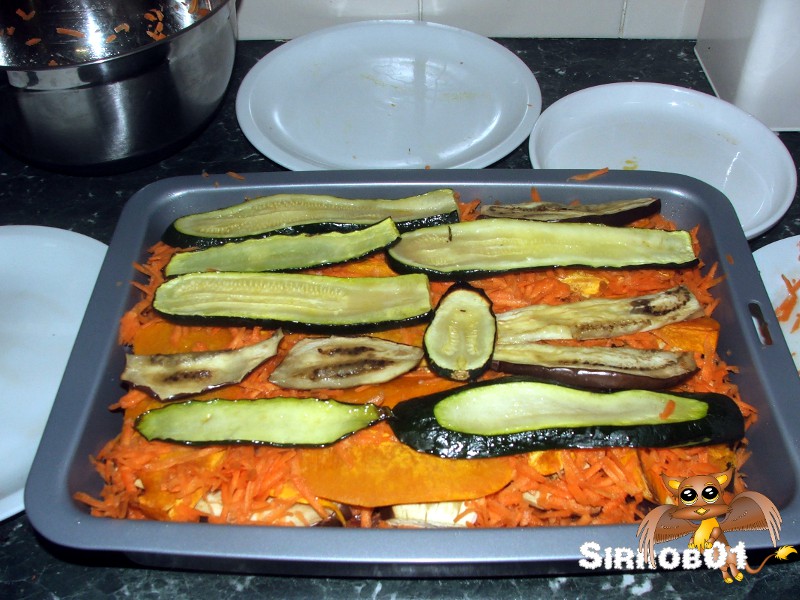
Grab a deep roasting pan, mine is 35.5 x 25.5 x 7.5 cms (14 x 10 x 3 inchs) and non-stick. I spray my roasting pan with spray oil just in case then start loading the vegetables in.  The order you want to go in from the bottom of the pan up is:

  • Eggplant
  • Grated Carrot (1/5)
  • Pumpkin
  • Grated Carrot (1/5)
  • Zucchini
  • Half the Tomato Sauce
  • Sweet Potato
  • Eggplant
  • Grated Carrot (1/5)
  • Pumpkin
  • Grated Carrot (1/5)
  • Zucchini (if your out of zucchini save a little Eggplant from the 2nd layer)
  • Grated Carrot (if any left) (1/5)
  • Remains of Tomato Sauce
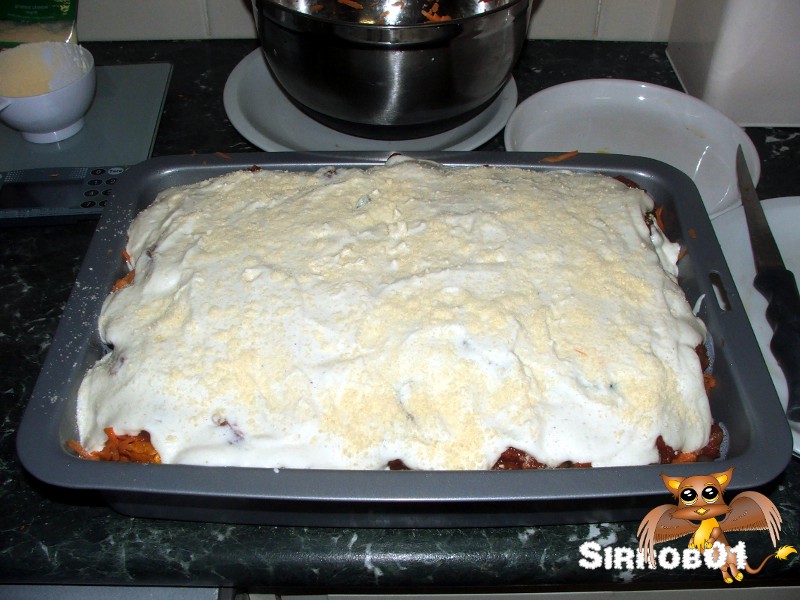
  • All the White Sauce (spread over with a Spatula)
  • Sprinkle with 20g of Parmessan

Don’t worry to much if you don’t have enough for a full 2nd layer, just layer them the best you can. Next place the roasting pan in the oven on 200 c (400 F) for 40-50 mins until the top starts to go golden brown. Once ready remove from the oven and allow to cool for 10-15 mins and then cut into 8-12 serves.

Just out of the oven

 I roughly calculated the energy and fat in the whole Moussaka which is 13000 kj (3100 cal)  and 80 grams of fat. A 1/10 serve is 1300kj and 8 grams of fat. If you want to drop some of the energy and fat simply ditch the Parmesan cheese this will decrease the overall energy in the total Moussaka by 800kj and 16grams of fat.

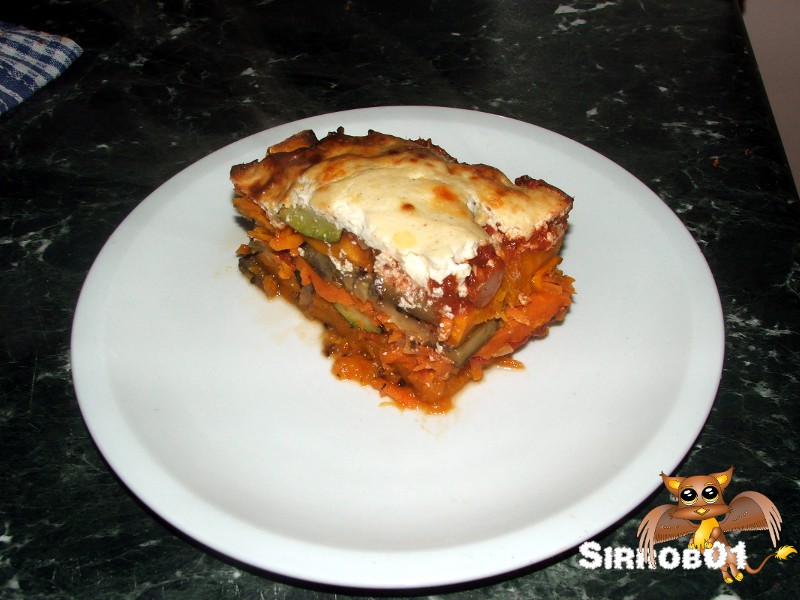
Ready to Eat…Hmm needs some salad

Hope you enjoy it, if you make it 🙂

Trailer – Easy Trailer Folding Trailer

It has been a while since my last post however I have been very busy,  until now I haven’t completed any projects. I try to keep my blog for things I finish so that I do finish them. This is the first post of three showing one of the big projects I’ve/We’ve (Wife, Dad, Mum, Odd Tradesman) have been working on over the past 3 months, the other two projects being; having my house re-clad and working hard to finish off the refurbishment of the spare room.

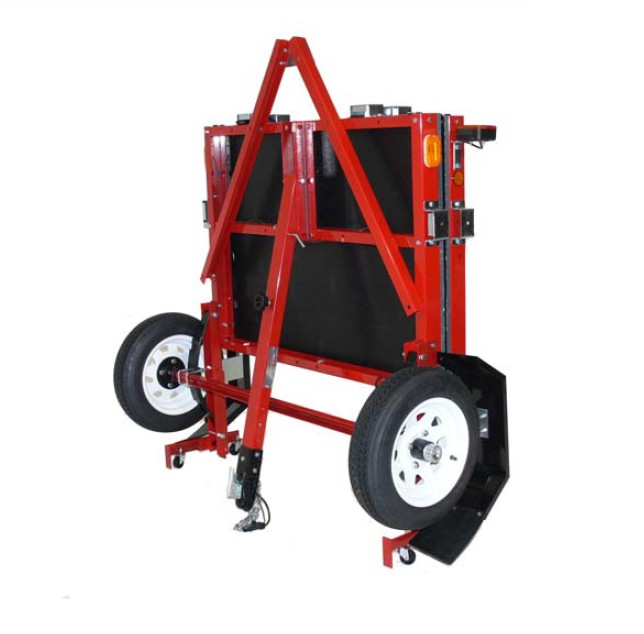
I bought an easy trailer folding trailer from carlex based in Melbourne, I’m pretty sure if your in the US these are the same trailers you can buy through Harbour Freight. I settled on this trailer for a few reasons:

  • Firstly it’s light about 100kg (220lbs) assembled as a tabletop trailer, I have a small car so I wanted to minimize the dead weight I tow.
  • Secondly the gross tare for the trailer exactly matches the max tow capacity for my car (Toyota Yaris)
  • Thirdly I can fold it up and more easily push it around and store it without it taking up a huge amount of space.

I wont do a big blow by blow assembly post there are quiet a few nice U-tube videos showing assembly and folding. Overall the assembly was reasonably easy although it did take two of us about 6 hours to go from 3 box’s of parts to a finished trailer with working lights. I didn’t order a floor from carlex as I couldn’t see the point in  shipping ply halfway across Australia.

Image borrowed from carlex catalog

Once the trailer was assembled and the floor was on I rolled it down to my local blue slip inspection station. I wont say it was an easy process to get the trailer blue slipped but it definitely was not as tough as getting a Custom built job engineered and then blue slipped. Small tip replace the nuts that come on your light fittings with nylocks one of mine rattled a little loose on the way to the inspection station and then they wouldn’t pass it, which meant my trailer then got trapped unregistered on the other side of my wall cladding material for 4 weeks. I suspect most people wont have the issue of having there new external wall cladding blocking the rear garden gate so it was really a non-issue :).

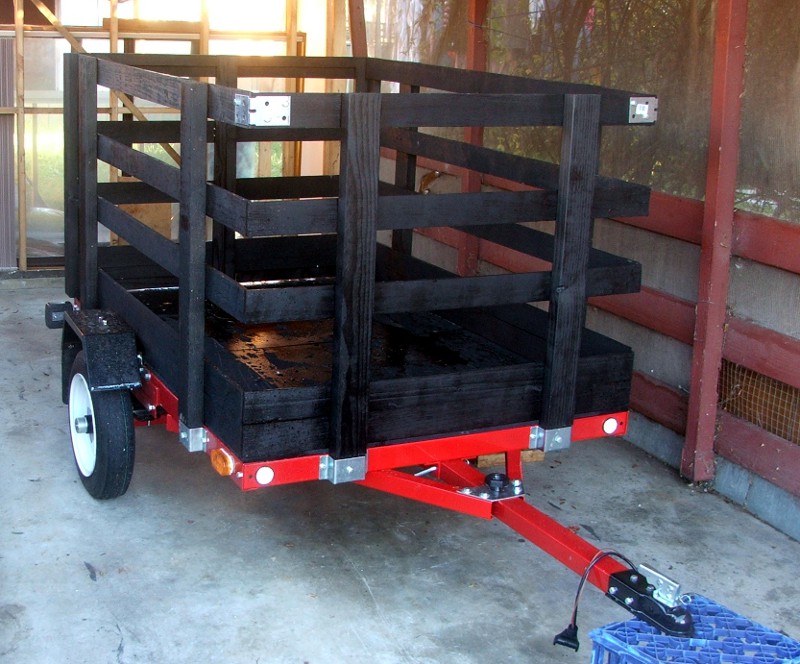
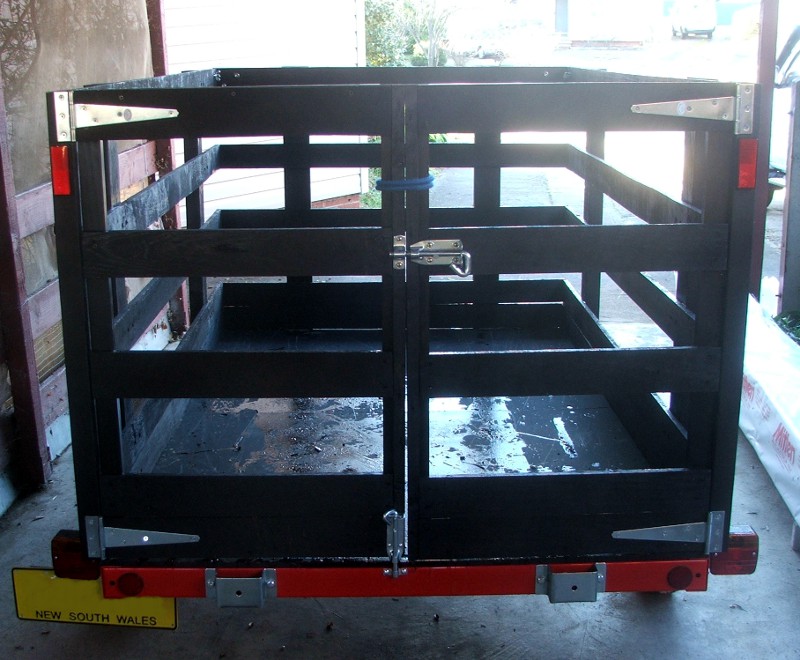
Once the trailer was registered I built up a wooden cage that provides approximately 95cm (just over 3 feet high) of height to make garbage hauling etc much easier, this gives me approximately 2 square meters of garbage/stuff hauling capacity. The cage itself took about 10-12 hours to build and paint. I pretty much followed the instructions available on the carlex website (available on this page) however I did make some minor changes:

  • I used Aussie hardwood fence slates for the rails should be tougher and stronger, the uprights are standard structural pine.
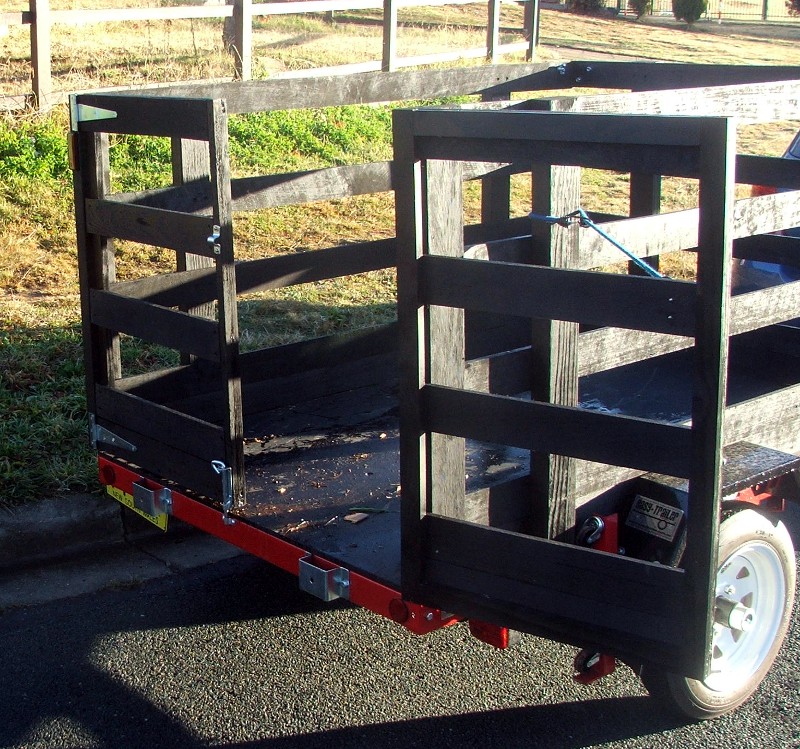
  • Added a double swing gate to the rear that meets in the middle for easier loading and unloading.

Someone else might like to add rear gates so I’ve included a few close up pictures below of how I mounted my gate. The ocy strap is just in case, but I have been unable to rattle the drop bolts apart when driving and I’ve tried hard. My gates wont fold back 270 degrees but they do go back a little more than 180. You could mount the hinges on the side and use normal square hinges for a full fold back. I decided to stick with the below configuration as the T hinges provide added support to each of the gates.

I plan on eventually having 4 configurations for my trailer:

  • As a tabletop trailer for hauling plasterboard, doors and other large flat building supplies (done).
  • A friend is going to use it to move his motorbike around on the odd occasion so it will also be fitted with a removable front wheel channel (to be mounted).
  • As a 6×4 cage trailer for hauling rubbish or moving odd bits of furniture quickly (done).
  • As a standard 6×4 with small sides (need to build or buy these)

All in all I’m very happy with my folding trailer all up costs for the kit, rego and crate are about $1000, for a 6×4 trailer which weights with crate about 135-145kg. Not the cheapest 6×4 you can buy but probably one of the more versatile and easy to store.

Drawing – Chibi Batman

I’ve spent the last month doing some drawing in between playing Dave Gaffams sanctuary game (which I’m really enjoying). I decided to colour one of my doodles as I wanted to get some practice cleaning up line work and shading using the cell shading technique.

One of my drawings was a Chibi Batman, nothing to special and as you can see below I still have issues with proportions and angles, my Batman is also very skinny. I used a couple of other pictures from around the internet as inspiration. I’d credit back to the other artists but I’m afraid my google-fu must be lacking today as I can’t locate the images again even using the same search.

Handly my black pen stopped working so I couldn’t outline the above on the page but instead had to manually trace over all the lines in Inkscape. While doing the tracing I fixed a few minor mistakes, like his left leg/bum and lack of outside underwear :).


Next up I tried out some simple colour schemes settling on the blue/grey more 1960’s colour scheme rather than the more modern black/grey schemes used in the past couple of decades, basically the blue/grey just looked more interesting on the page.

Lastly I  cell shaded the image with some degree of  success. I still don’t fully understand how to use it as shading method but I think I’m getting there

I uploaded all 3 versions as svg below, as per usual you’ll need to right click “save as” and change the extension from .odt to .svg after you have downloaded them. Maybe one day WordPress will allow direct svg upload…. anyways enjoy :).

Batman Chibi linework

Batman Chibi Solid Coloured

Batman Chibi Cell Shaded

Papercraft Build – Sanity Studios: Orcs

I’ve built quiet a number of  Sanity Studios paper miniatures, so I thought it was time I did a review of one of their sets so I picked latest set. They have just released a very nice set of Orcs which is the first set in there Green tide army. These are the more modern take on Orcs that we have all come to expect when someone says Orc, ugly, brutish with green skins. For those who are unaware Sanity Studio’s has a set of tabletop rules to go along with their paper miniatures called Bellicose, I’ll probably do a review on rules in a separate post later on. To save me some space you can read about comparable scaling in this post. I will just mention that the Orcs stand a little taller than a Sanity Studio’s human, approximately 30mm to the eyes.

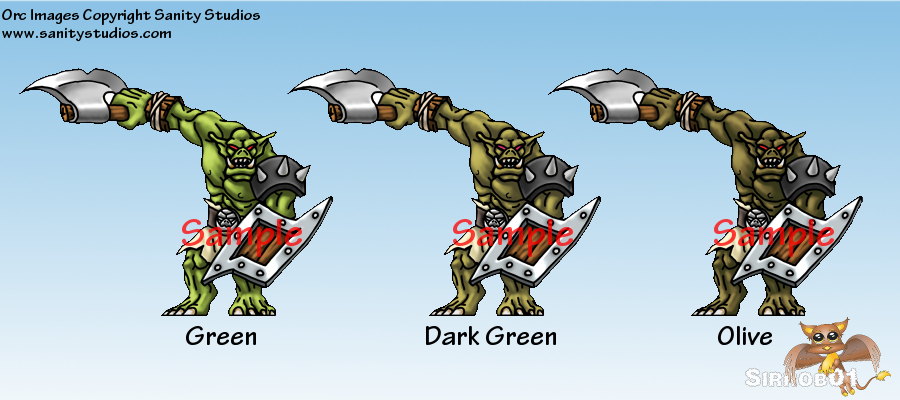
There are a total of 10 unique Orcs in the set with an additional 3 which are a mirror of the first 3 so your not wasting paper when you print them off (a nice touch).  This gives you 13 orcs across two pages. Additionally there are 3 skin tones available for each Orc, Green, Dark green and Olive. This means you can print of the pages 3 times and have 39 Orcs that are all slightly different.

Sanity Studios Orc Skin Tones

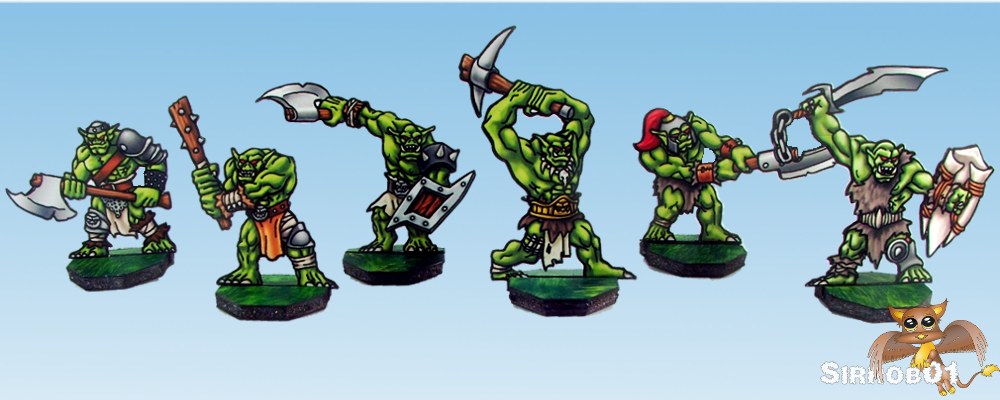
The first page contains 6 unique Orcs, wielding a variety of weapons, shields and armour. The poses are very dynamic and really convey a sense of movement in each of the miniatures. All the miniatures are very good on this first page with my favorites being Orc3 and Orc6, my least favorite is Orc2. The photo below shows the 6 Orcs in stock Green skin:

Orc1, Orc2, Orc3, Orc4, Orc5, Orc6

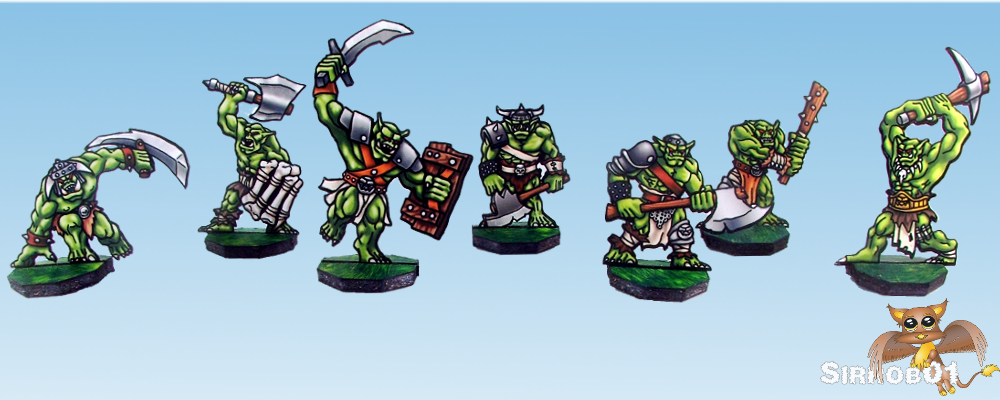
The 2nd page contains 4 unique Orcs and 3 mirrored Orcs (1,2 and 4), for 7 in total, the poses are likewise very dynamic across this page. My favorite from this page is Orc8 with Orc7 running a close second, I’m going to pick on Mirrored Orc2 as my least favorite. The photo below shows the 7 Orcs in stock Green skin:

Orc8, Orc7, Orc9, Orc10, 1Cro, 2Cro , 4Cro

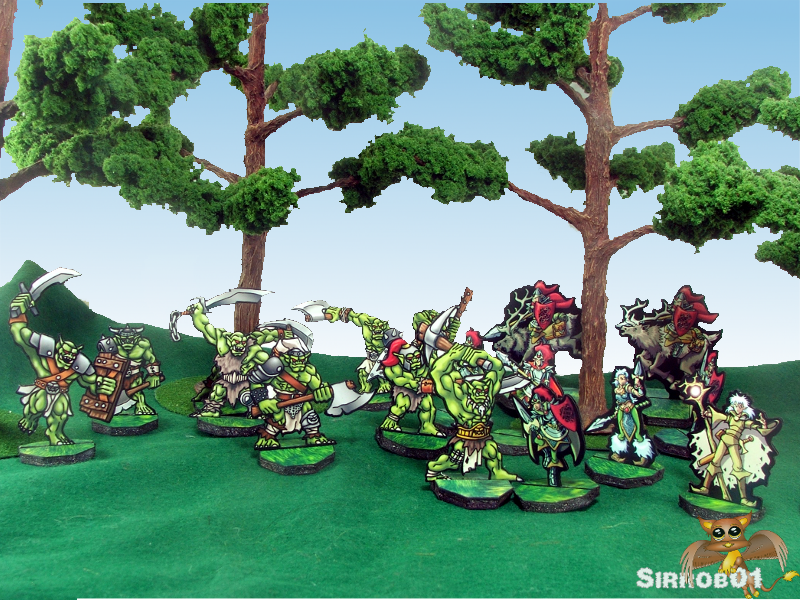
As you can see from the above pictures the Orcs are coloured/shaded differently to David Okums work. David goes for a more comic book cell shaded look for his mini’s were as Labrat from Sanity Studios colours/shades  similar to how you would have if you were painting a metal/plastic Orc miniatures. Both styles work well on the table but I have to admit when placed side by side on the table the Sanity Studio’s mini’s do seem to “pop” a little more, but this could just be my own personal preference seeping through as they both look good even at longer distances, either way your not going to go wrong picking up work from either artist.

Sanity Orcs vs Okums Elves

The Orc’s come with a premade craftrobo/silhouette  cut file so if you have one of those cutters it’s very quick to go from pdf to a couple of units of Orcs. Unfortunately an optional Cameo layer was not included but this can be addressed using a ruler and black pen. Handcutting will be a little slower, as you can see from the above pictures the Orcs have quiet a few small shapes protruding off them which increases the time it takes to cut them out. The added detail does mean the Orcs have a better overall impact on the table.

At the moment these Orcs would be great for populating a warband for a skirmish level war game eg SoBH (this will be one of my uses). They’d also be great for a GM to use in  a dungeon for a role playing game. There’s not quiet enough to populate up a full fantasy Orc army but I know Labrat has some goblins in the works which will then make these much more usable for larger army wargames. I know from reading the Bellicose rules (were these minis are intended to be used) that in the future Sanity Studios/Labrat will be working on several other additions for the Orc army such as:

  • Goblins
  • Goblin Pedal tank
  • Hobgoblins
  • Ogres
  • Shaman
  • Orc Warlord

No idea when they will be available but Sanity Studios has been filling out there troop roster for 24-36 months now so I’m fairly confident we’ll see most of the above at some point.

The Orc set is $3.95 which is good value for money, you don’t get as many different Orcs as David puts in his sets but David appears to be the exception rather than the rule when it comes to number of paper miniatures in a release. These Orcs are also more what people think off when they think Orc so for myself they are an excellent set/instant buy and lastly and most importantly you can never have to many Orc’s :).

Have fun gaming :).
Warmachine – Hirst Objective Markers

I have a few Hirst arts molds which I have never used before, I bought them about mid last year but had not had anytime to try using them. However over the Xmas/New years period I did a big pile of casting, I did something like 10-12 casts of each of the 5 molds I own. Since it’s been a while since I last painted I decided to do a few objective markers for a friend who plays Warmachine.

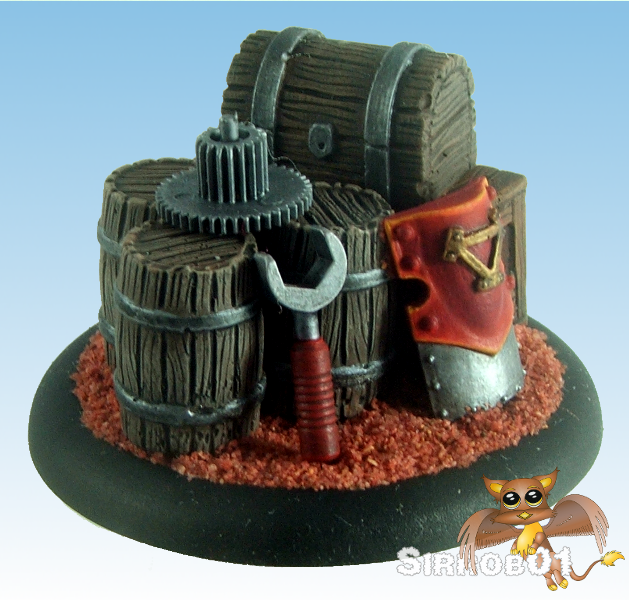
These are primarily made from parts from Hirst mold #85 cavern accessories but they also include a few Warmachine shields, odd cogs and a lego spanner. I restricted the size of my objective markers to the same size as the official Warmachine ones that were  released last year. My friend who is going to use these primarily plays the  Khador faction, so I asked him for a few bits from his bits box so I could give each one a unique Khador feel.

Building each one was pretty simple, I selected some random Hirst crates, barrels or sacks and then stacked them on a 60mm Warmachine base, adding the odd cog and Khador component. Once I was happy with the combination of parts I based the bases with plain red sand to keep them simple and to have them fit in with the way the rest of his army is based. Then painted each of the components individually and finally glued them to the base I applied two coats of matt varnish to help provide an extra level of durability as objective markers tend to get handled more compared to normal terrain.

The marker above is my favorite of the three, the blending on the shield came out quiet well and the Lego spanner seems to make the marker more dynamic than the other two.


My second favorite of the three markers.

Lastly and my least favorite, this one just doesn’t work for me, the blending on the arm is very sketchy but I tried three times to improve it and failed each time. I think I struggled as my brain really wanted to highlight the middle of the hand not the outside edge so I was fighting my own internal notion of how I would normally have painted the hand. The marker also seems less full than the others as the axe hand takes up a lot of volume but is not a solid block so the base appears emptier. It should still be good enough to game with :).

These didn’t take me very long to make and I enjoyed making them, although painting the shields and hand took longer than I would I have liked.

Have fun gaming 🙂
Carrot and Tomato Soup (Very Quick to Make)

Final Big bowl of carrot and tomato soup. I haven’t posted over the past few months as I’ve basically been working on to many projects at once plus trying to get a little healthier and working on losing the last little bit of weight I need to, to get into the “healthy” weight range. Although I’m feeling much fitter and healthier than I have in about 18months to 2 years, I do want to get back into that healthy weight range, I’m no Arnie after all :).

I found I needed a quick filling meal that didn’t take me an hour to make but still tasted okay. I present to you all the super quick tomato and carrot soup. Basically if you have a blender, teaspoon, bowl  and microwave you should be able to knock this soup together very quickly and for about $2.50 a serve. It is potentially a little high in salt so if you’ve got high blood pressure check the salt content of the canned stuff before making up a big batch.

Ingredients

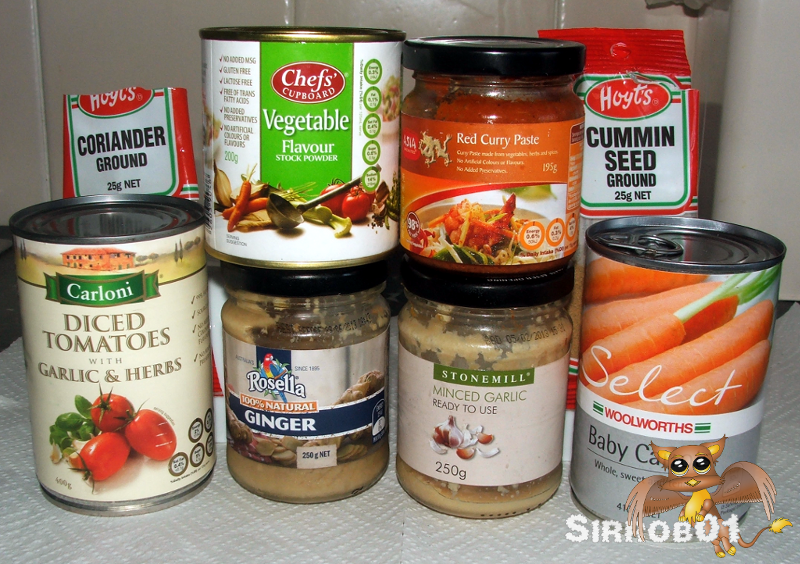
1 Can of Garlic and Herb diced tomatoes (400g ish)

1 Can of baby carrots (400g ish)

1 heaped teaspon of minced garlic

1 heaped teaspoon of minced ginger

1 heaped teaspoon of red curry paste

1 teaspoon of vegetable stock

1 teaspoon of cummin seed (ground)

1 teaspoon of coriander (ground)

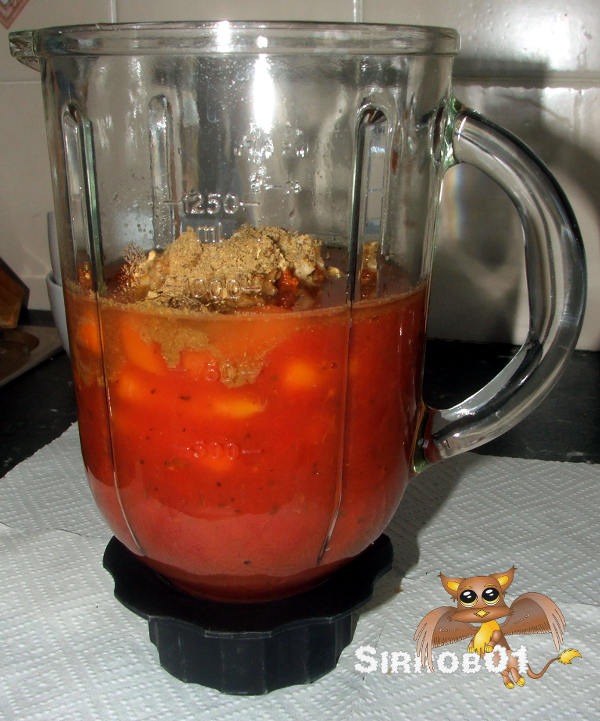
1. Open the Tomatoes and tip them into your blender, then pour the baby carrots on top (liquid and all)
2. Next up throw in the garlic, ginger, curry paste, veg stock, ground cummin and ground coriander.

3. Blend for about 1 min until the whole mixture looks smooth and pour into a microwave safe container, I swirl about 1/2 cup of water around the blender to get the last few bits of soup and pour that in on top.

4. Microwave on high for about 8 mins (my microwave is only 750 watt so if you have big microwave either cut the temp back a little or the time)

5. The above makes just under a liter of soup so either one really big bowl or two normal sized ones, the whole tub should work out to about 800kj (190cal) and 2 grams of fat. Top with a little pepper if you like 🙂

Final Big bowl of carrot and tomato soup.

The soups not perfect but it makes a quick easy and tasty meal. I’ve got a few more super quick easy meals which I’ll post up in the near future.

Pirate Bear – Photo Explosion

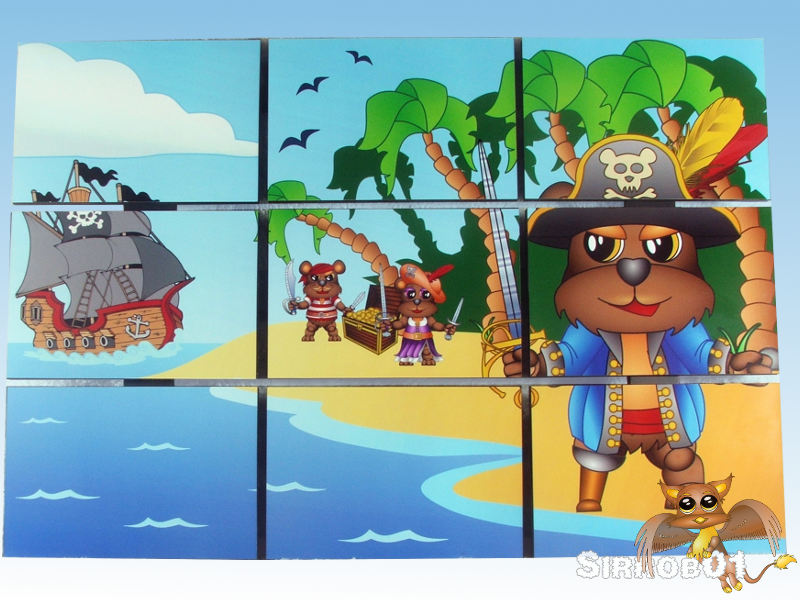
I’ve been pretty tied up working on some new paper miniatures, but I wont have them done until sometime in mid to late Jan. For Xmas I have put together a photo explosion scene of some of my pirate bear miniatures for my nephew.

I created an image in Inkscape using my pirate bears, drawing some new elements and buying some (The chest is from the Openclipart library and the ship is a commercial piece of clipart I bought). I then used the templates available at this site to create the individual 6×4 images. I did alter the template slightly as the standard template has a 10mm gap between each photo and it looked to wide so I lowered it to a 5mm gap. Then I just followed the tutorial from the above link and exported the 9 images. I didn’t print the photo’s myself as it’s cheaper to get them done at your local officeworks or large department store, cost me all of 90 cents (AUD).

Last step was to create a frame to mount the individual pictures to (reverse side pictured above). While I was in officerworks I noticed they had a pvc foamboard product, it’s extremely tough compared to regular foamboard but can still be cut with a craft knife and steel ruler(2-3 passes with a craft knife). So I simply cut out 9 small 6×4 rectangles and glued these together using a 25mm strip of the same pvc foamboard super glued to the back. Lastly I used double sided tape to stick the pictures to the frame.

I’m pretty happy with how it turned out although I’m not sure the picture works that well with the photo explosion layout, I think a simpler or more abstract picture would work better. However I don’t think my nephew will mind.

Hope everyone has Great Xmas and an Excellent New Year 🙂

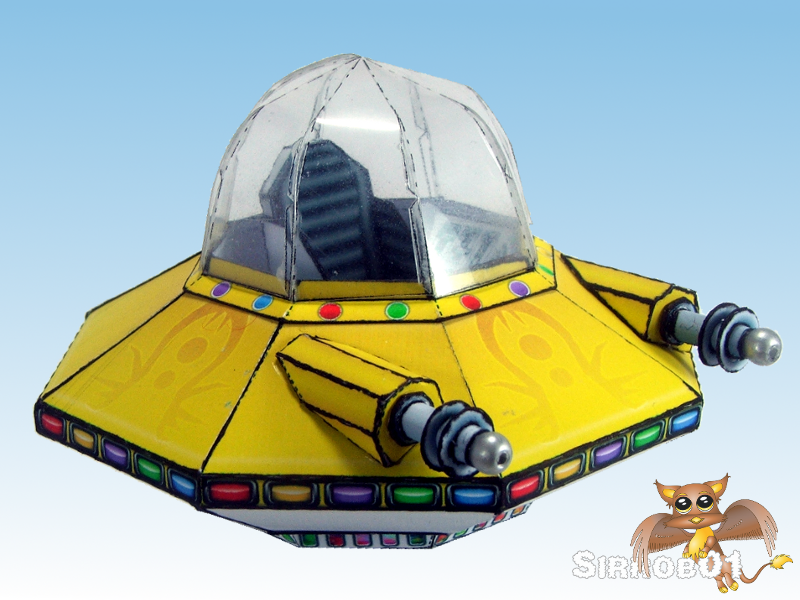
UFO MK I – Papercraft

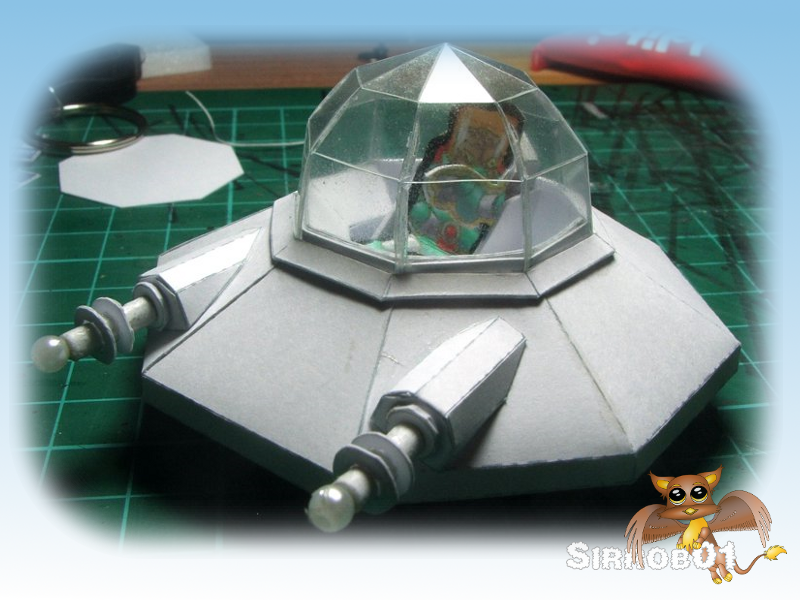
I’ve spent the past 2-3 weeks working on finishing a papercraft UFO, primarily to use with Okumarts retro aliens. The UFO itself is reasonably small (75mm/3inches across), this does mean some of the parts are quiet difficult to build due to the size of the parts. The Guns are the most fiddly followed by the canopy and then the rest of the UFO. I will warn that this is not an easy model to assemble and you will need at least 2 hours to cut and assemble the clear canopy version, the first time you make it. I have also included a solid coloured canopy if you don’t want all the internal detail

Quick Download Links
UFO Mk1 Final – PDF (25mb)
Instructions UFO Mk1 (5mb)
UFO Mark One Studio  (rename extension to “.studio” after download)

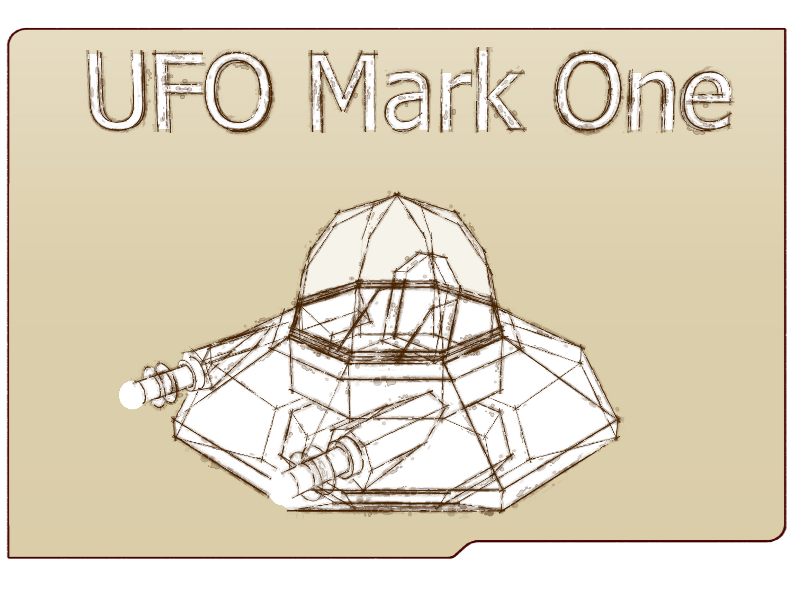
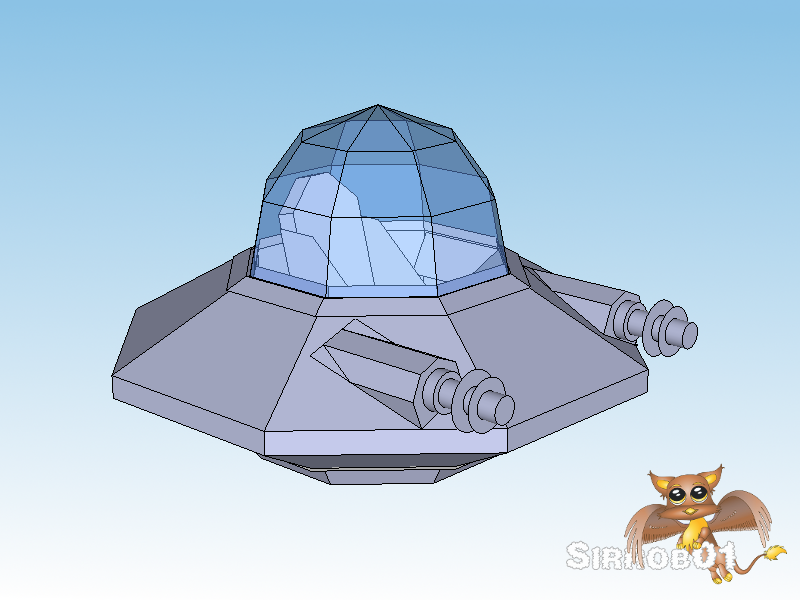
I designed the base UFO in sketchup and ran through several different designs before settling on an Octogon as the bases for the UFO.

For each of the initial designs I also built a rough version in plain white card to see how hard the design was to build. I added some small plastic beads to the below gun ends to help give them that more retro laser/gun look similar to how Okumarts drew his weapons.

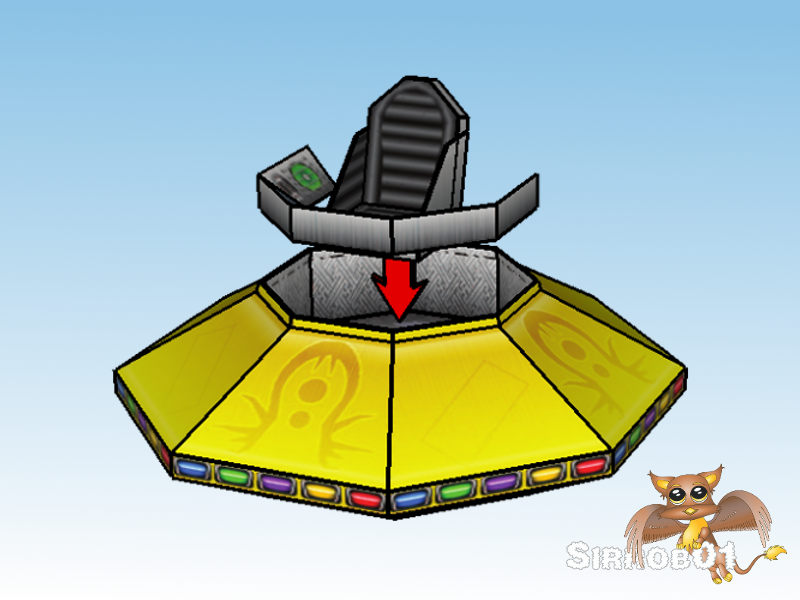
To try and make the instructions a little clearer after I’d flattened the model and textured it. I laid the texture over the top of the sketchup model and created some renders for use in the instructions. Below are some renders I made up for the instructions, you can see the rest in the instructions :). I learnt a lot about what not to do when trying to texture a model in Skechup and will be much more careful with the layout of any future models.

As far as texturing goes it was fairly standard GIMP work, I did add two base  texture types a sort of brushed metal look and a more enamel paint look. I put in a large number of colour options as not all the colours worked with both texturing looks, plus I’ve learn’t to keep my texture and colour layers seperate so that adding a new colour is just a matter of duplicate existing layer and flood fill. I also split the base and cockpit out so you can have a coloured top, a metal coloured base and then if you like a different coloured metal texture for the inside of the cockpit. I added a few other customizable bits such as; different insignia, different light colours, several different engine globe colours and two different clear canopy designs (see final picture (type two) and test build (type one)) . There is a studio cut file for the model (use the new Studio Designer to open), I included both an SD and Cameo layer for cutting, the SD is the default layer so if your cutting on the new Cameo don’t forget to turn on the correct layer before printing (if anyone does use a Cameo to cut the file let me know if it works :)). I have hand cut and cut with the Silhouette SD and due to the size and scale of some parts on the UFO if you can afford the time I’d definitely recommend hand cutting as the human hand and eye are still more accurate than the SD, with the small parts on the UFO even a small mis-alignment during cutting can cause problems during assembly of the UFO.

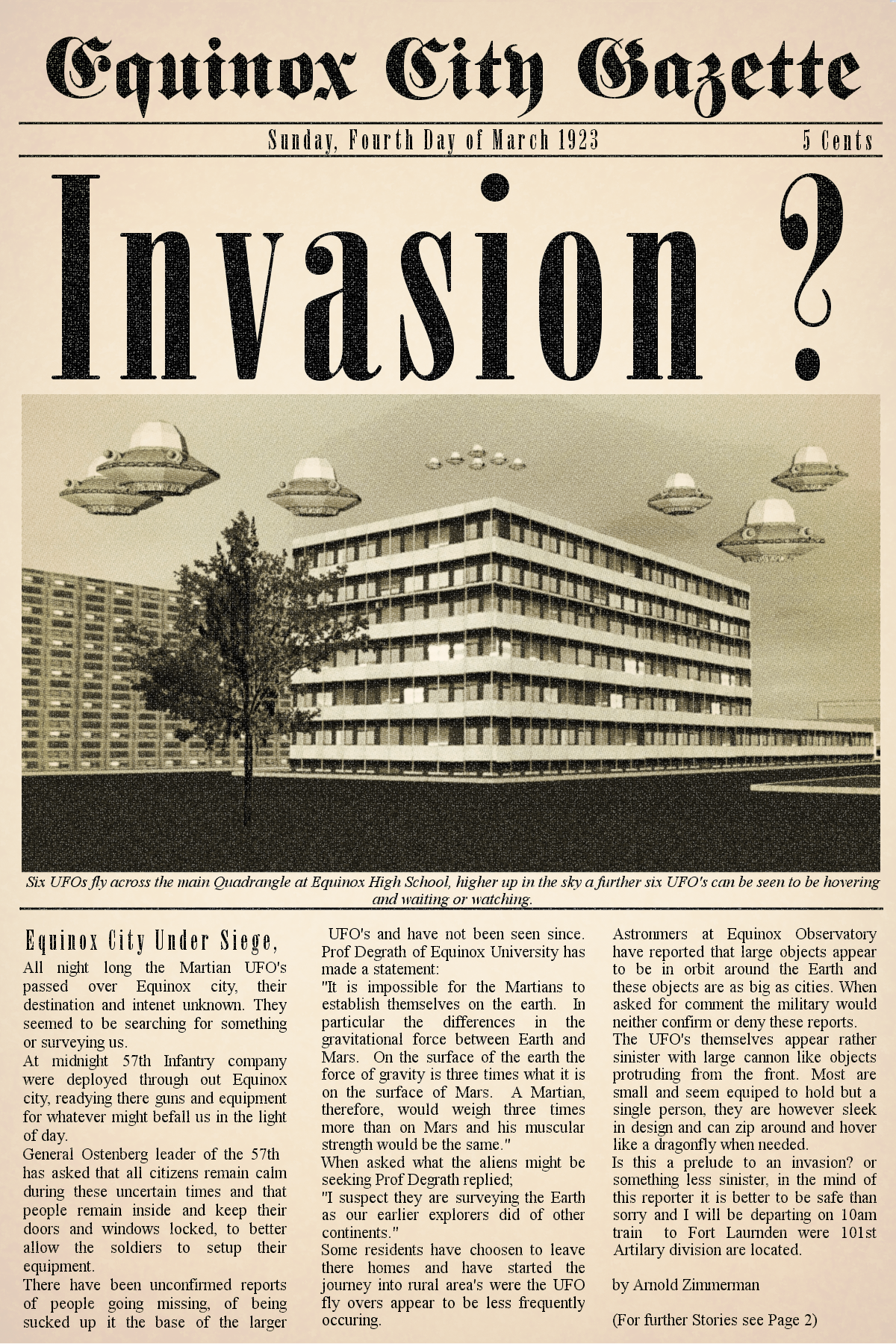
Newspaper Mockup: City Scape by Barive, Text inspired by H.G.Wells War of the Worlds

I actually had a lot of fun putting this model together, with both the dragonfly and dunebuggy I used a lot of time up learning how to best lay the files out etc which meant a bundle of re-work for both. Although still a lot of work the UFO seemed to flow much better and I knew what to do to help speed up certain steps and what to expect in regards to amount of work at each step. A rough breakdown of time is about a 1/3 on the mesh, 1/3 on texturing/layout and 1/3 on instructions.
I’m off to build a few more UFO’s so that my retro aliens can face of against the terra force marines and at least have some chance of competing against the Dunebuggy and Dragonfly. Hope you enjoy the model :).

UFO Mk1 Final – PDF (25mb)

Instructions UFO Mk1 (5mb)

UFO Mark One Studio  (rename extension to “.studio” after download)

Flight stand from Dragonfly

Papercraft Build – Dave Graffam/Thomas Weaver Observatory

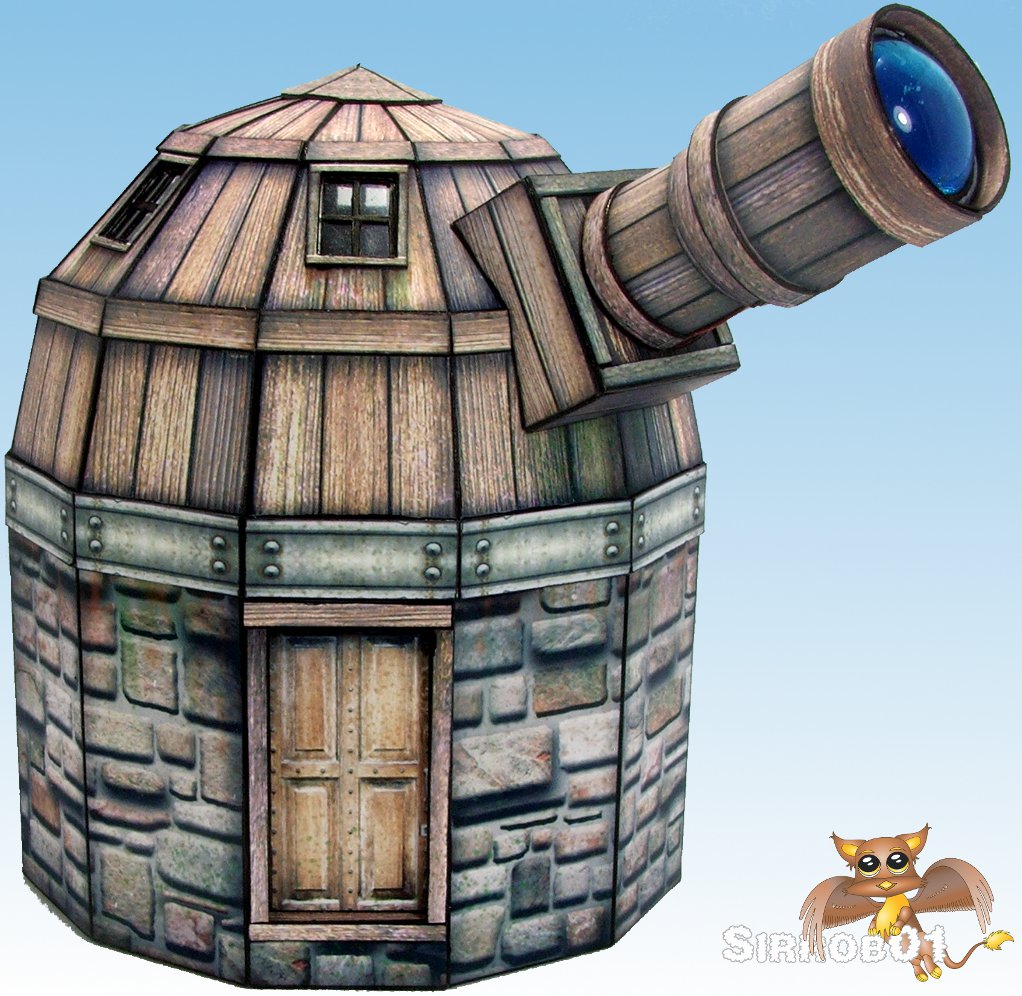
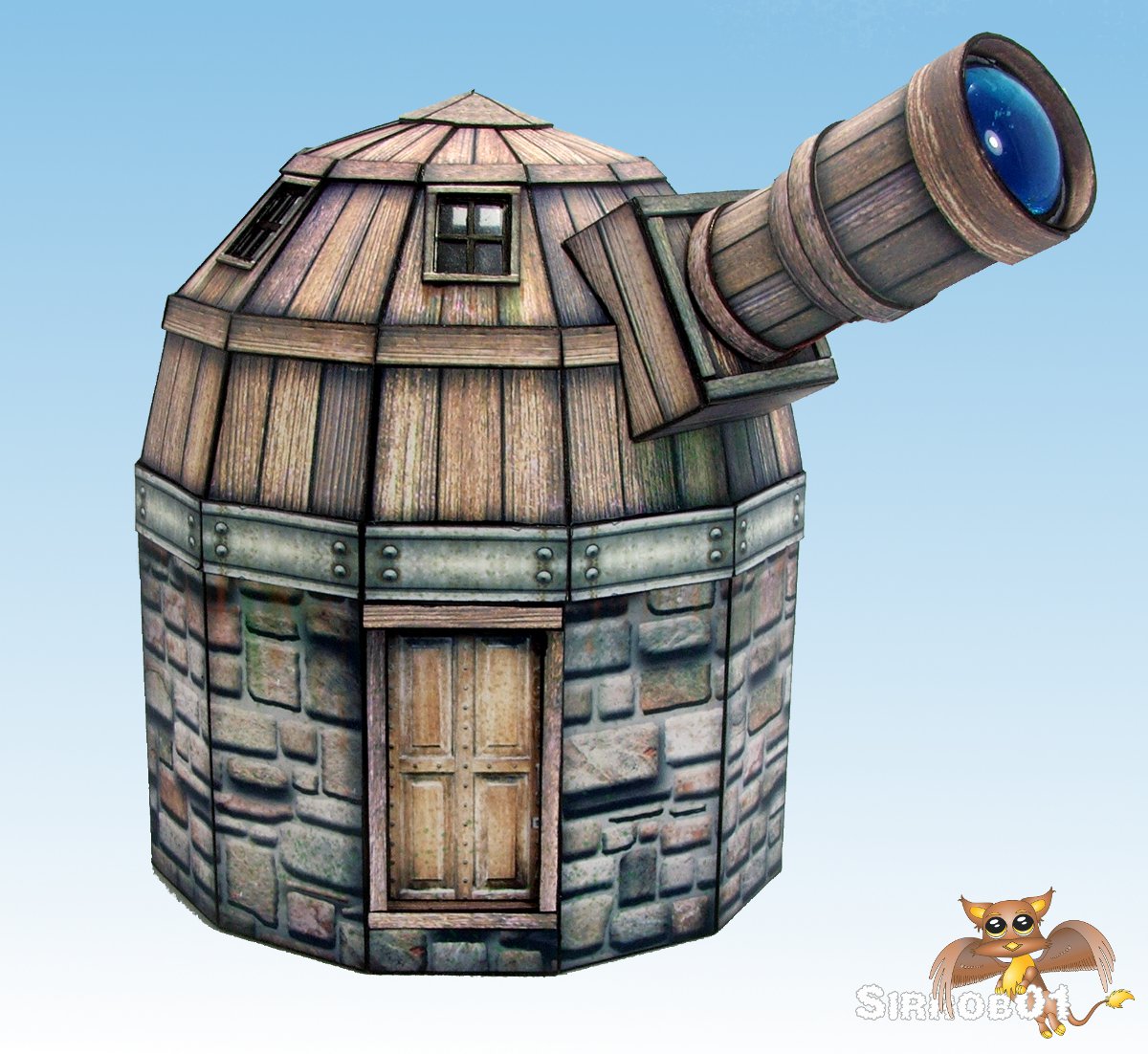
I’ve spent the last week working on Dave/Tommyguns Observatory model.  This is a free model but it is full of character and is unique as far as I have found in papercraft terrain. I did make some slight modifications to the model as I was building it, primarily I increased the size of the model by 145%, added an inside and tried my hand at adding some extra detailing to the model. I plan on giving this model to a friend to use as part of his warmachine table layout and I think it should fit in well with the steampunky feel of the Warmachine universe. I added the extra details to the model so it can be used as an objective in a scenario and look a little more special.

Due to the extensive changes I have made to the model I can’t really give you a step by step on what to print and how to replicate what I’ve done but hopefully the below pictures of the model and the comments I’ve made will help if you do wish to try. I will say edge under absolutely everything in black before gluing things in place as this will help cover up miss alignments and small gaps.

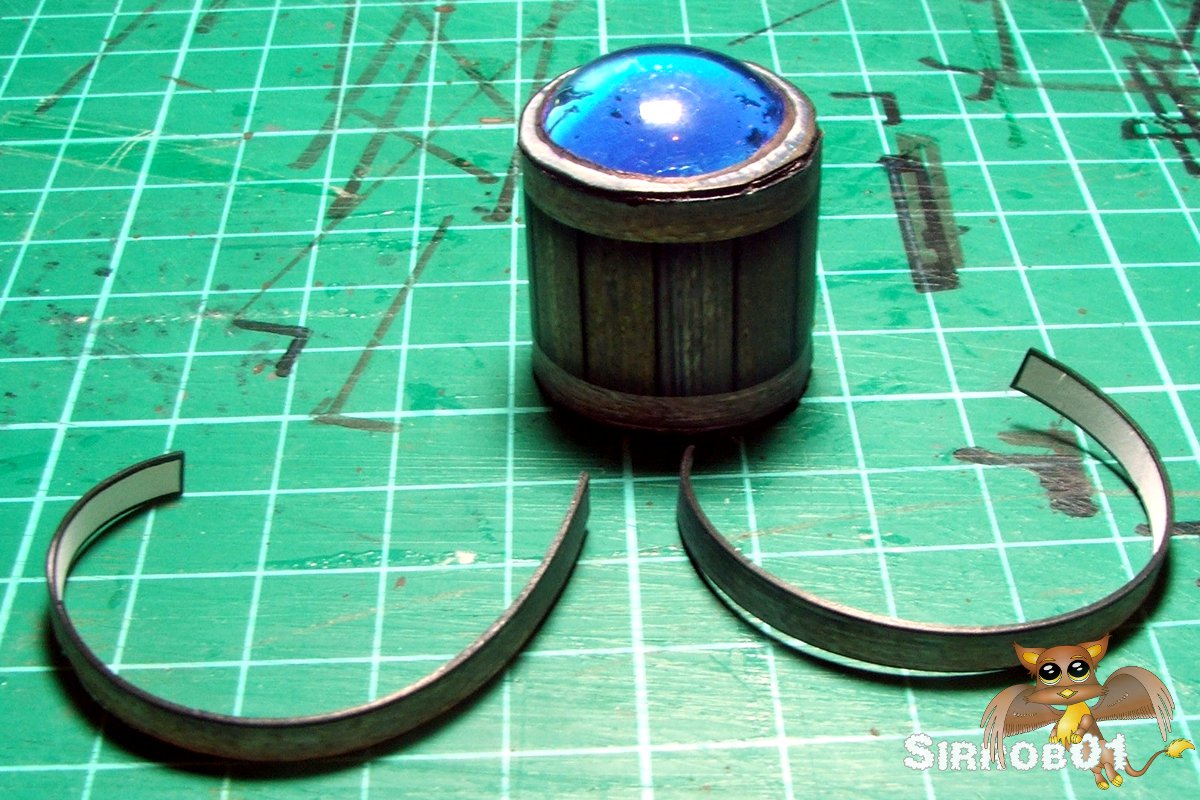
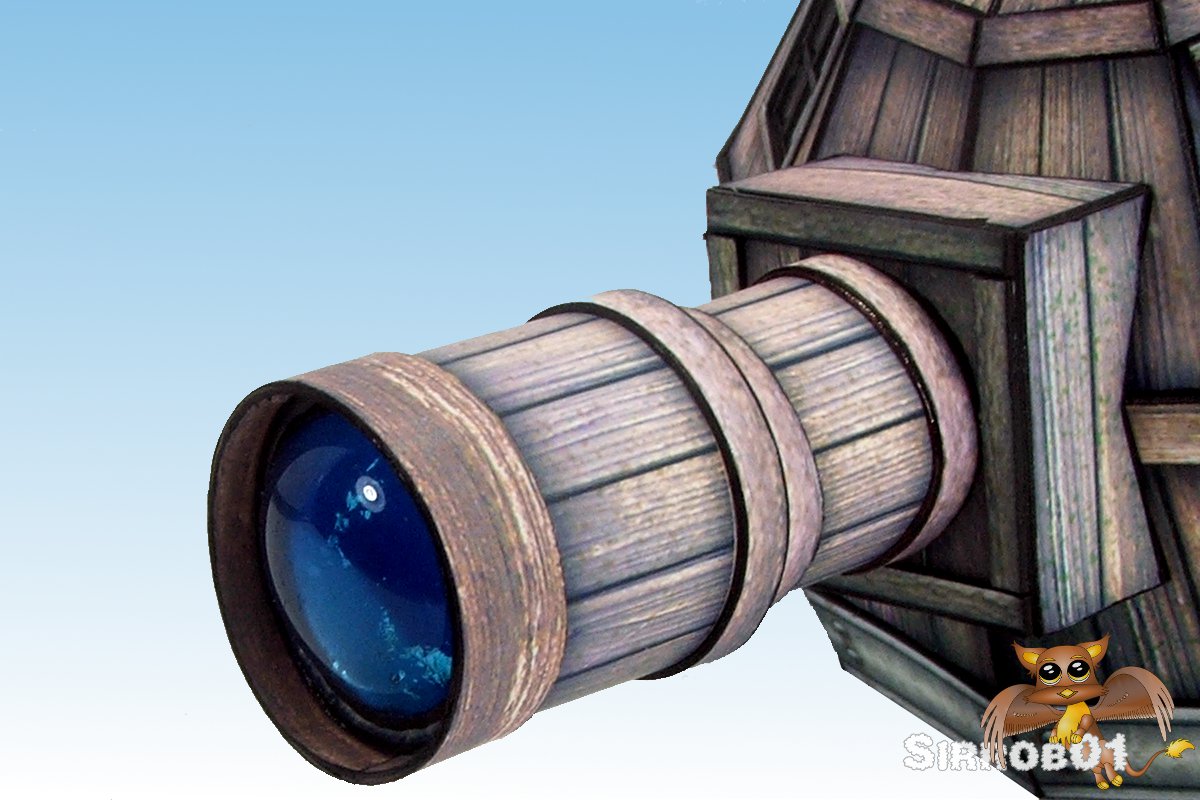
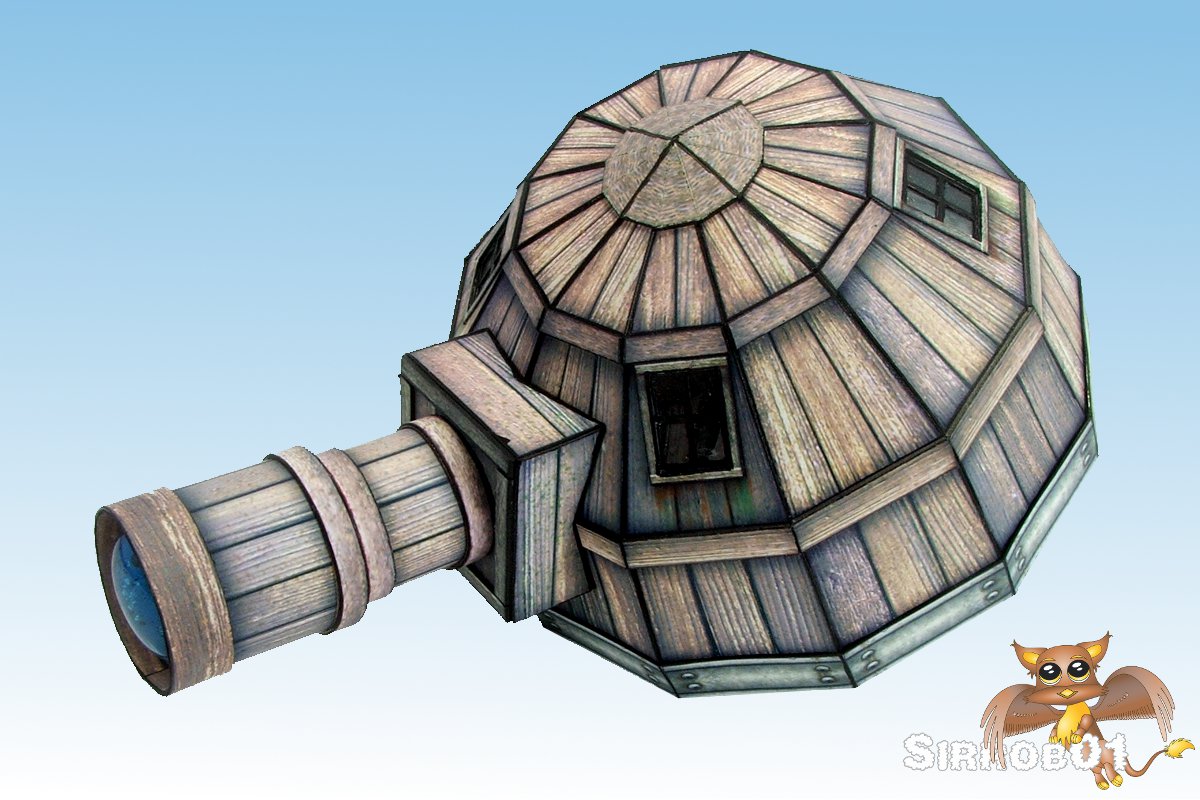
First up the telescope it’s self , I cut the end out of the telescope and glued a glass bead into the end of the telescope, I glued the blue end I’d cut out to the bottom of the bead to give a deep blue effect otherwise when you look at the bead you would have just seen the black inside the tube. Other than the clear acetate windows this is the only part I’ve added to the model which is not paper. I did try to make several domed paper parts but they looked terrible. I also printed out the parts twice and cut out bands of wood (doubled up 2 layers of 220 gsm) and glued these around the tubes to add some extra detail, the very end one I increased in width by 100% to add a shroud effect around the glass bead lens.

Under Construction

Completed and Mounted

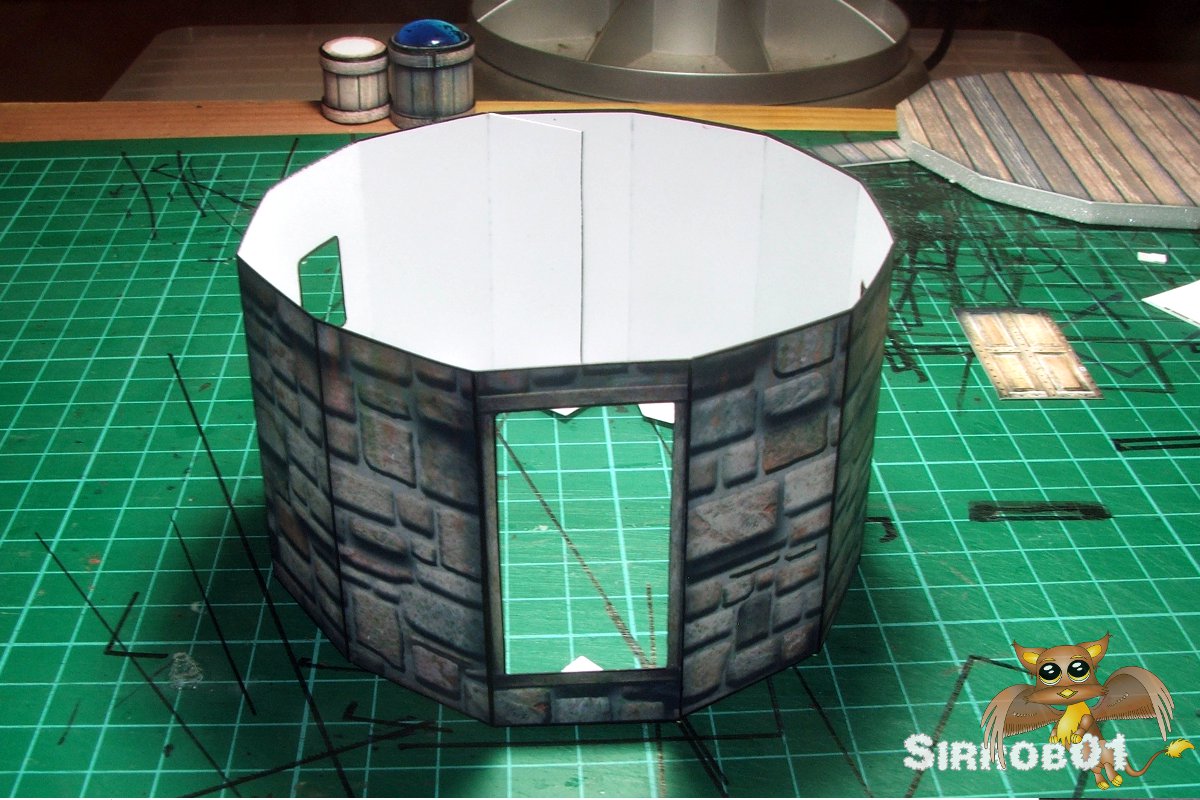
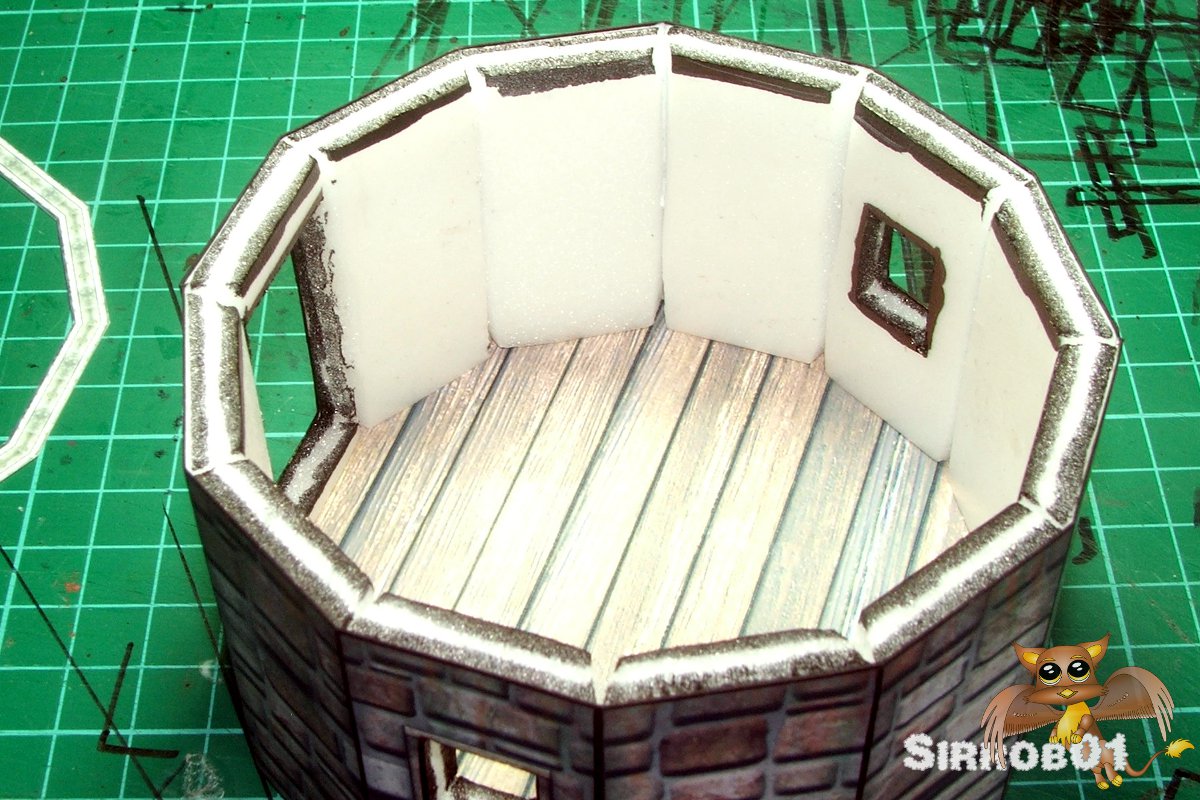
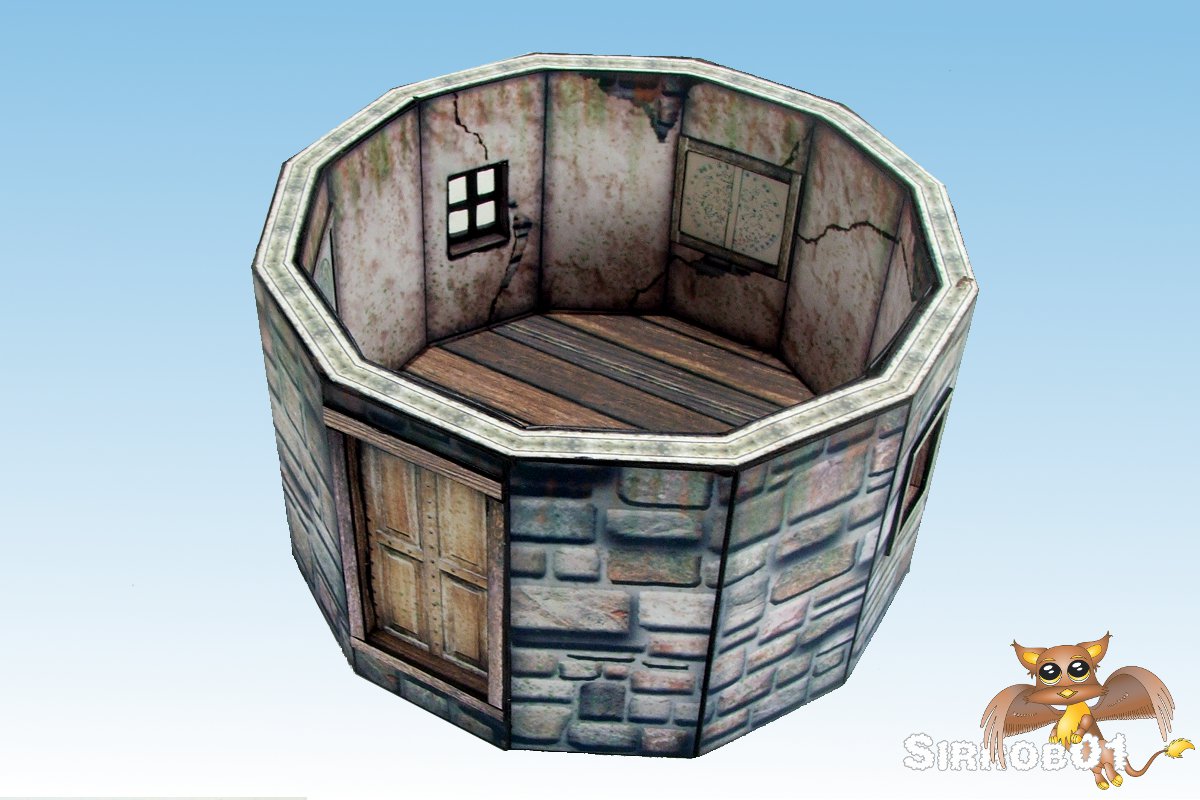
Next up the base: In GIMP I split the lower walls from the upper dome on the lower side of the metal flange. I then increased the wall height by 6mm (1/4 inch) so I could insert a foam floor later on. Next I added wood texture across the entire inside base. It was a simple matter to print out the lower walls floor and pretty much assemble as normal. Although I cut a dodecagon of foamboard to insert into the floor first and glued the walls to this (triangles on the underside)then dropped in and glued the textured floor on top of this.  I also cut out the windows and doors to enable me to fit them back later on. Once the outside was assembled I cut small segments of foamboard and glued these along the inside of the wall for strength and thickness. I then modified the external plaster texture to fit on the inside of the model to become the inner walls (102% height 90% width). Before gluing the inside in place I cut the window and door holes into the foam inserts then test fit the inside insert and marked were the door and windows would be and cut these out, the inside was then glued in place. I next added some flex steel (turned out to be un-needed) around the top edge and glued it in place and then covered this with a special dodecagon wall topper I made up in GIMP. Last step was to add some acetate windows, hinged door, framed star charts for the inside and window frames on the outside and the base was done.

Outer Walls and Floor in Background

Floor Glued in and Inner Foam Support Added

Finished Base

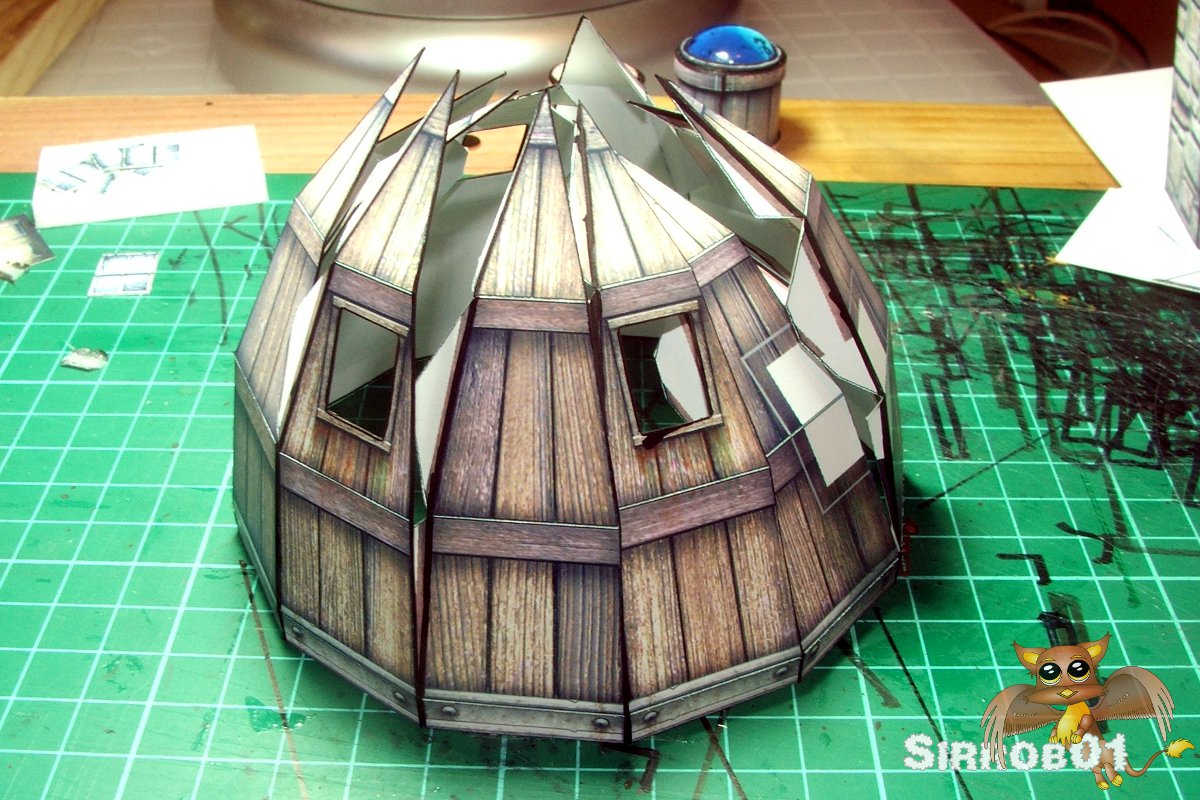
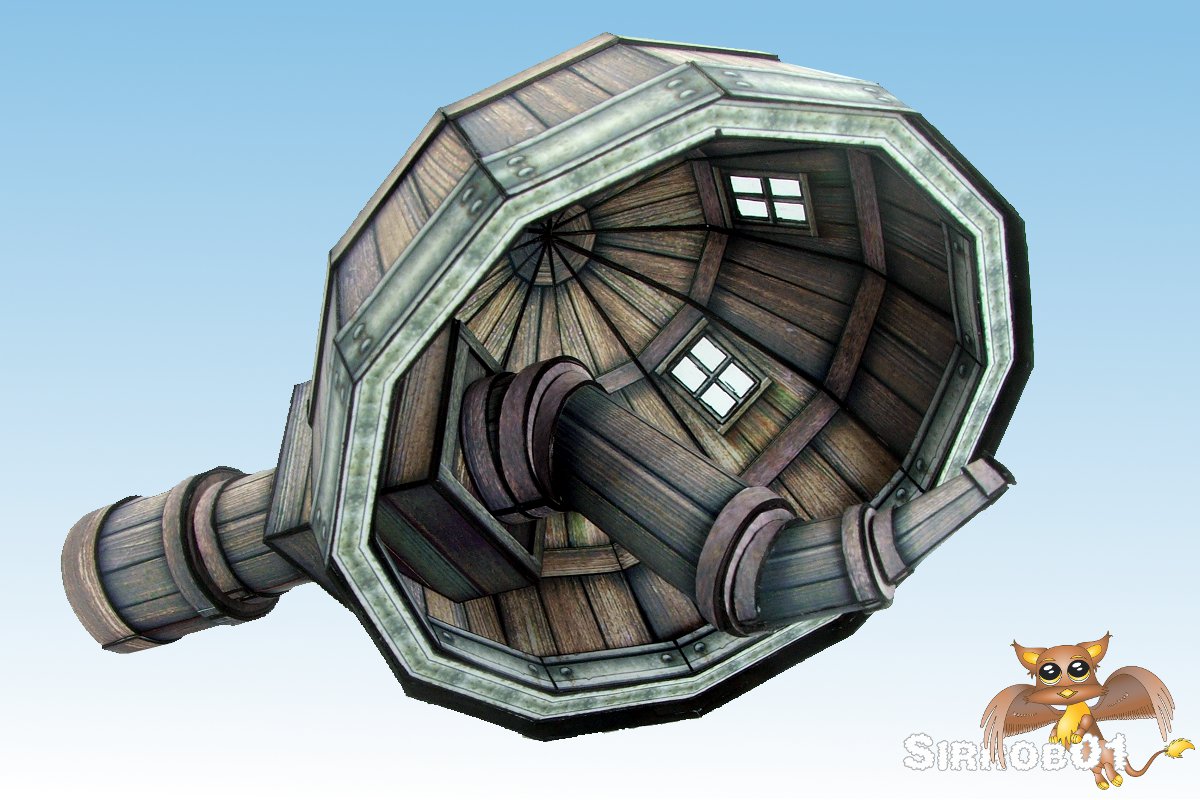
Next up was the top inside and out, this was a right pain in the neck as I had to design a telescope end and eye piece inside the Observatory. In the end I got a design that fit although I did make one piece slightly to long if I make a second one I will shorten the 2nd main bend a little. Sorry getting a little ahead of myself, assembling the outside was fairly easy, once again I cut out the windows before assembly. I then glued a foamboard dodecagon piece to the inside of the base of the dome approximately matching up with the steel flange graphic on the outside and about 6mmx6mm square (1/4 of an inch). Once this was in place I glued the top together in pairs to keep it symmetrical then glued the pairs into fours and so on until it was glued into the dome shape. I next added some detailing to the top (all double thickness 220gsm card) such as the horizontal wooden beams, the window frames and a cap to the top of the roof to help finish it off. At this point I also glued the acetate windows onto the inside of the dome top.

Outside Glue Up

Finished Outside Top

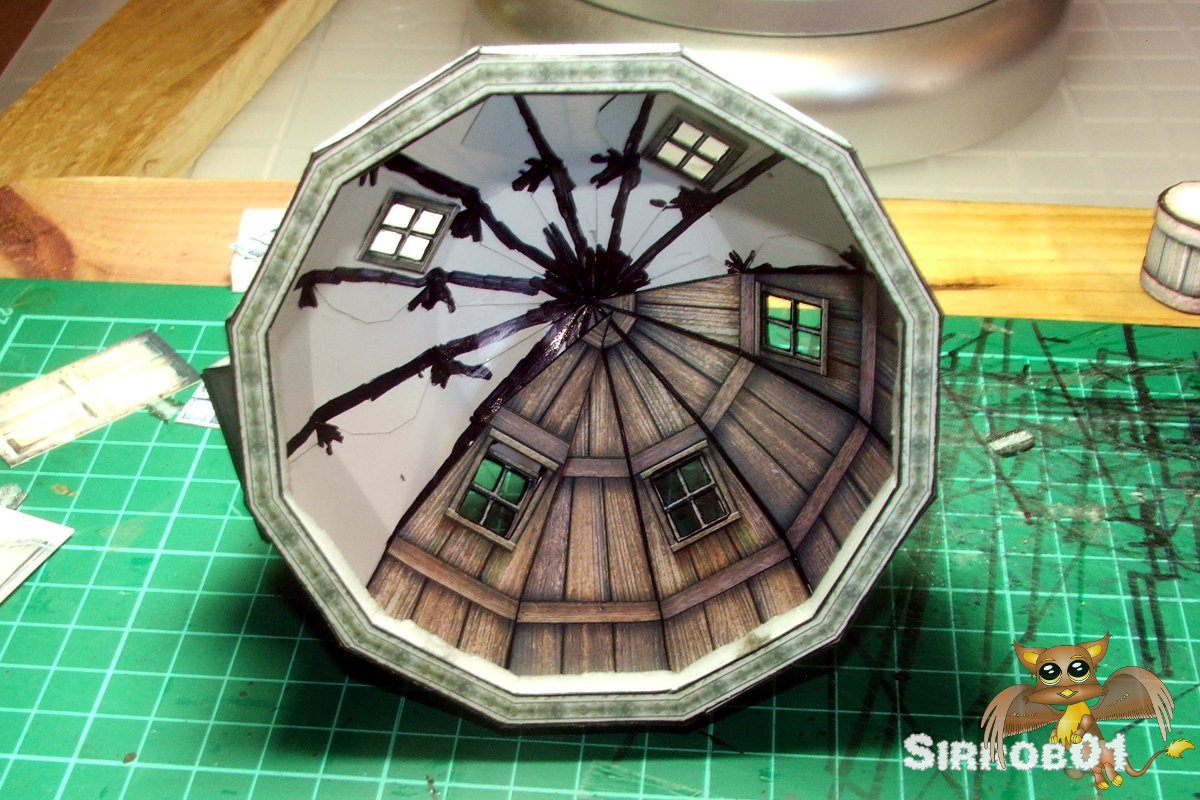
Onto the dome inside. As I wanted the wooden dome to be thinner than the masonry walls I kept the dome as only a double card thickness. To line it I simply printed the outside again and cut these into individual triangles, reverse scored them cut the windows out and glued them into place, there is a slight bulge on the inside were they cover up the windows. Next I added 6 small (5mm square) magnets to the foam flange and then reprinted the wall topper from the base and glued this to the under side of my foam flange. I likewise duplicated the outside texture and glued this to the inside of the foam flange. I didn’t bother to detail the inside of the dome as it’s almost impossible for someone to look up into the dome while gaming without removing the top and then your focused on the bottom. I did add an inside tube and eye piece to the telescope as mentioned this was a right pain but I finally got the geometry worked out on my third test build.  Unfortunately due to the small windows it’s very difficult to see from the outside but it looks nice when you pull the top of the model. To help hold the top to the bottom and cover any small miss alignments I made up a double wide metal textured piece and glued this on the bottom of the dome, this slides over the base and is a very tight fit (magnets seem to do nothing) if I was to redo the flange I’d put a thickness of card behind the card flange to give a little more play. On the plus side pulling the model apart requires some force so accidentally knocking it apart during gaming would be impossible.

Inside Top Lining

Finished Inside Top

Overall I’m very happy with how the model turned out, it let me try my hand at detailing in paper which although fiddly is no worse than scratch building in traditional materials except no painting and as an added bonus the model is extremely durable/strong due to the added bracing. The extra detail helps make the model pop on the table from a distance.

So why not go and grab some of Dave’s models or Tommygun’s and either build them stock or try detailing one up as a special terrain piece.

Finished and Assembled


Project Status


WWII Project First Release

80%


B-tech Buildings Five

20%


Design Victorian era City

15%


Something Different

5%


Enter your email address to follow this blog and receive notifications of new posts by email.

Join 110 other subscribers

Content Released Under

Creative Commons License
This work is licensed under a Creative Commons Attribution-NonCommercial 3.0 Unported License.
Please Attribute to Sirrob01 with a link back to my blog